Turn Your iPad into an HDMI Monitor for Windows
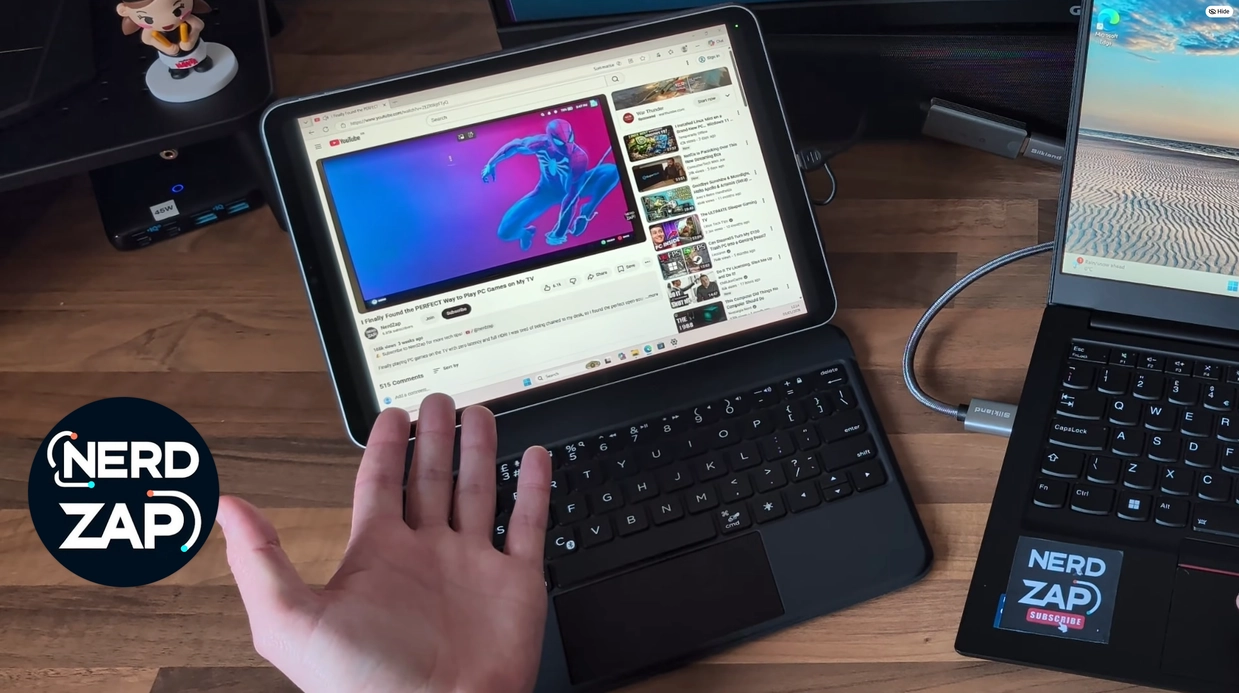
Most "second screen" solutions (like Spacedesk or Duet) require installing software, paying subscriptions, or relying on Wi-Fi, which can introduce lag. This guide shows you how to use a cheap USB Capture Card and a free browser tool to turn your iPad into a fast, wired HDMI monitor—perfect for locked-down work laptops where you can't install admin software.
📌 Key Takeaways
- No Admin Rights Needed: Works on corporate/work laptops because it behaves like a standard plug-and-play monitor.
- Wired Stability: Uses a direct HDMI connection rather than Wi-Fi streaming, eliminating lag and stutter.
- Completely Free: Uses the free NerdZap View tool with no subscriptions or software costs.
Transparency Note: As an Amazon Associate I earn from qualifying purchases. This means if you click a link and buy something, I may receive a small commission at no extra cost to you.
You will need to open this tool on your iPad to view the display feed:
NerdZap View (Browser Tool)⚠️ Hardware Prerequisites: You need an iPad with a USB-C port running iPadOS 17 or later (iPad Pro, Air, Mini, or 10th Gen). You also need a USB Video Capture Card.
Step 1: Connect the Hardware
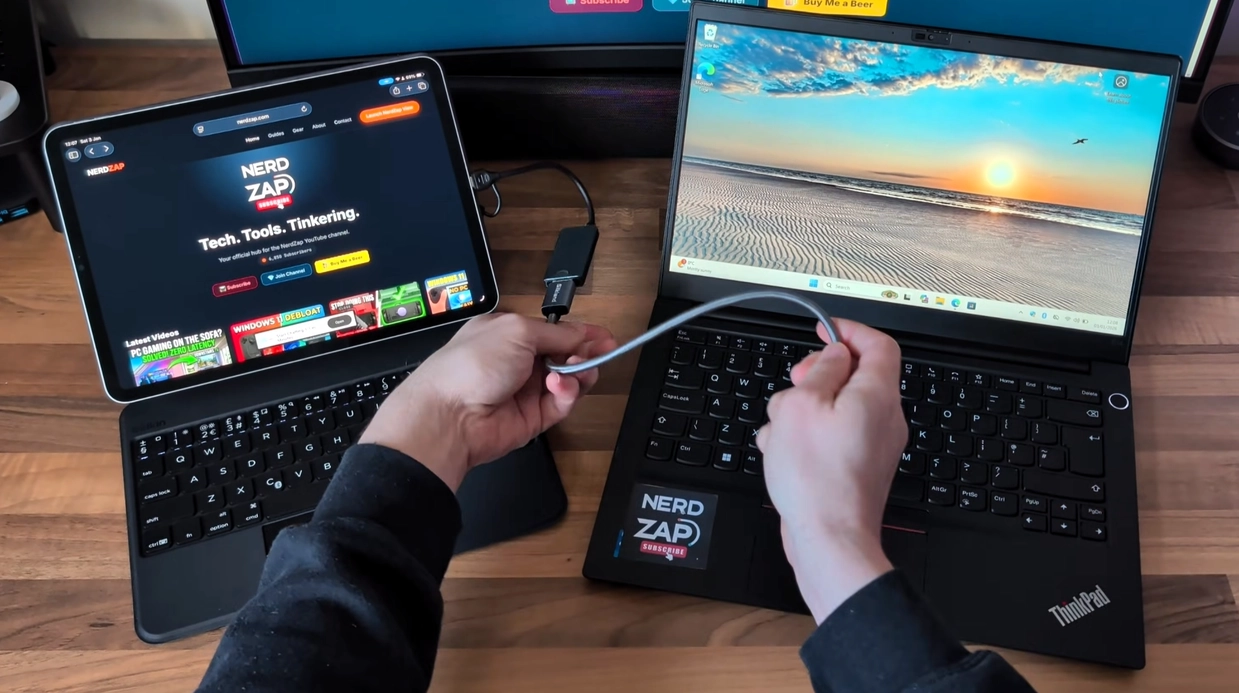
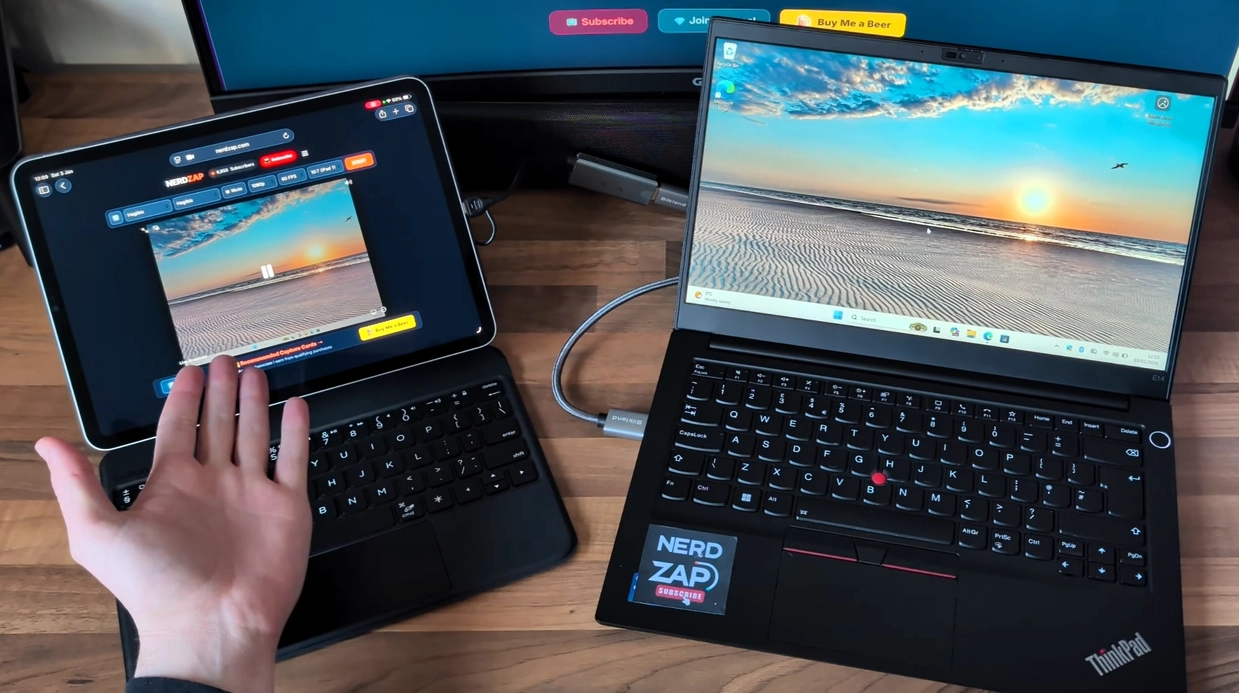
This method tricks your iPad into thinking it is a webcam, while your Windows PC sees a standard HDMI monitor.
- Plug your USB Capture Card into the USB-C port of your iPad.
- Connect an HDMI cable from the Capture Card to the HDMI port on your Laptop or PC.
- If your laptop does not have an HDMI port, you can use a USB-C hub or a specific USB-C to USB-C capture card.
Step 2: Launch NerdZap View
Now we need to display the incoming video signal on the iPad screen.
- On your iPad, open Safari (or your preferred browser) and go to nerdzap.com/view.
- The tool should automatically detect the capture card. Click Start.
- When prompted for permissions, allow the browser to access the Camera.
Note: The browser sees the capture card as a "webcam." No video is being recorded or sent to the internet; it is all processed locally on your device.
Step 3: Configure Windows Display
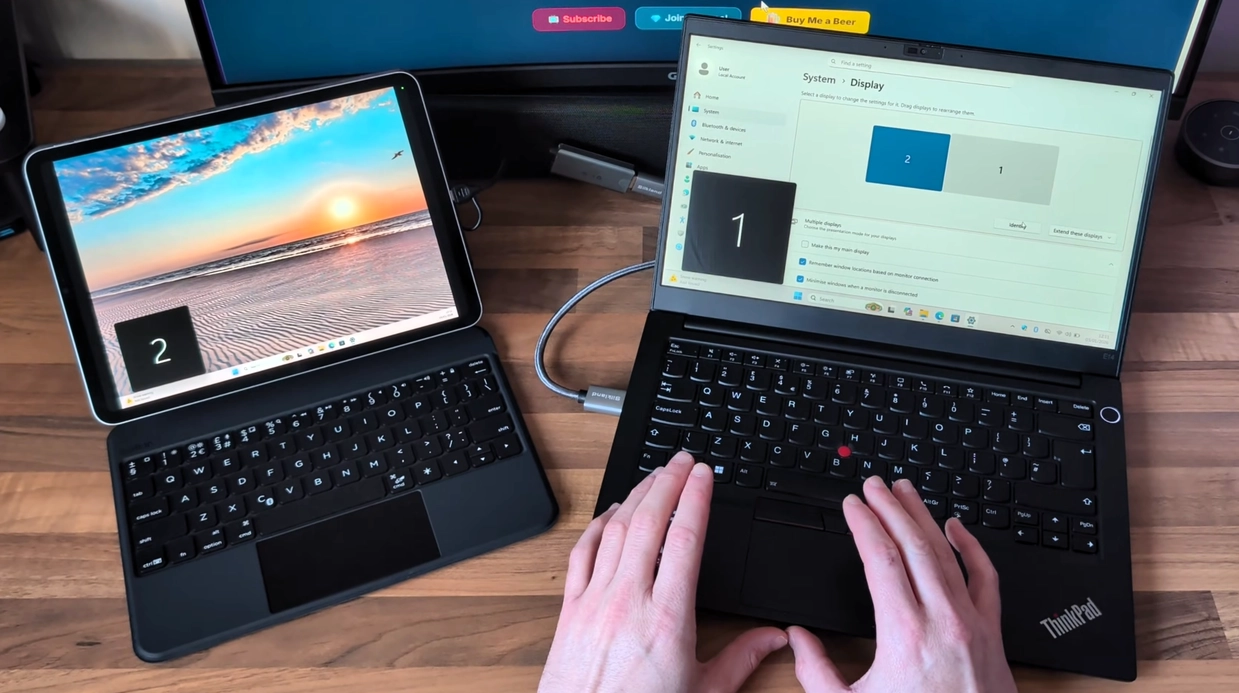
Your Windows PC should now detect a second monitor. We need to configure it to look correct.
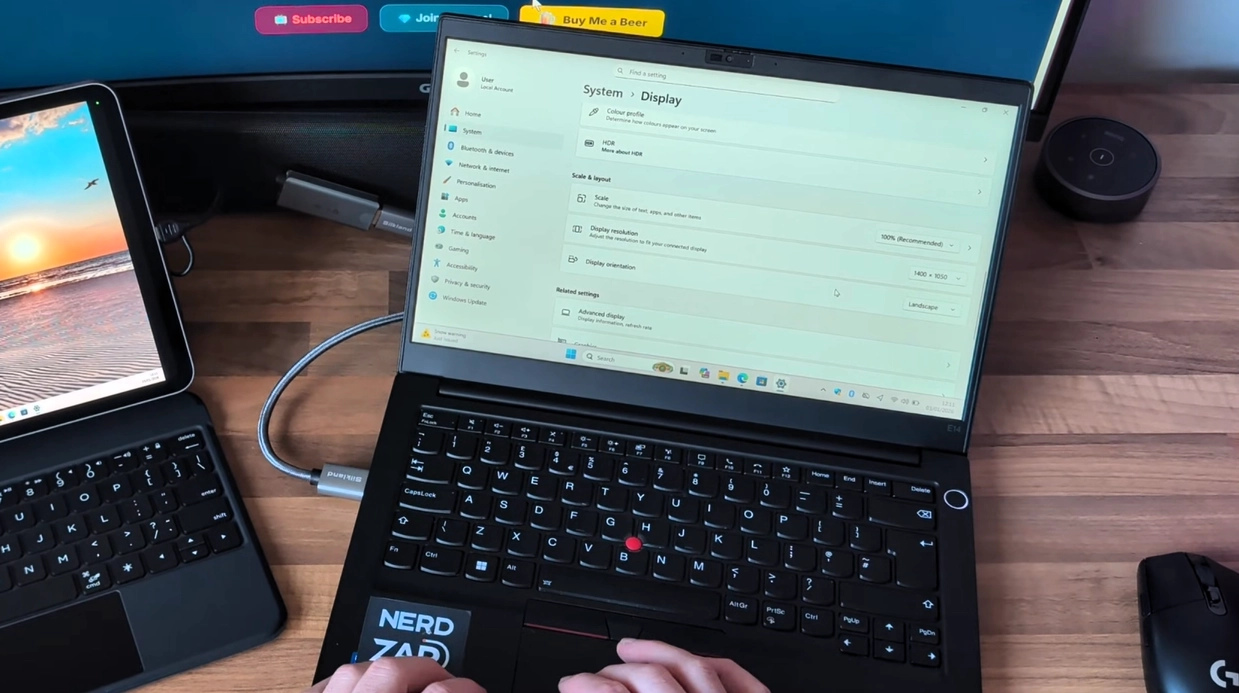
- On your Windows PC, right-click the desktop and select Display Settings.
- Ensure the Multiple Displays setting is set to Extend these displays.
- Select the new monitor (usually labeled "2") and adjust the resolution.
Tip: Use the resolution cheat sheet at the bottom of the NerdZap View page to find the best aspect ratio for your specific iPad model.
Step 4: Audio Setup (Optional)
One of the great features of this setup is that you can route your PC audio through the iPad's superior speakers or connected AirPods.
- In the NerdZap View tool on your iPad, ensure the Mute checkbox is unticked.
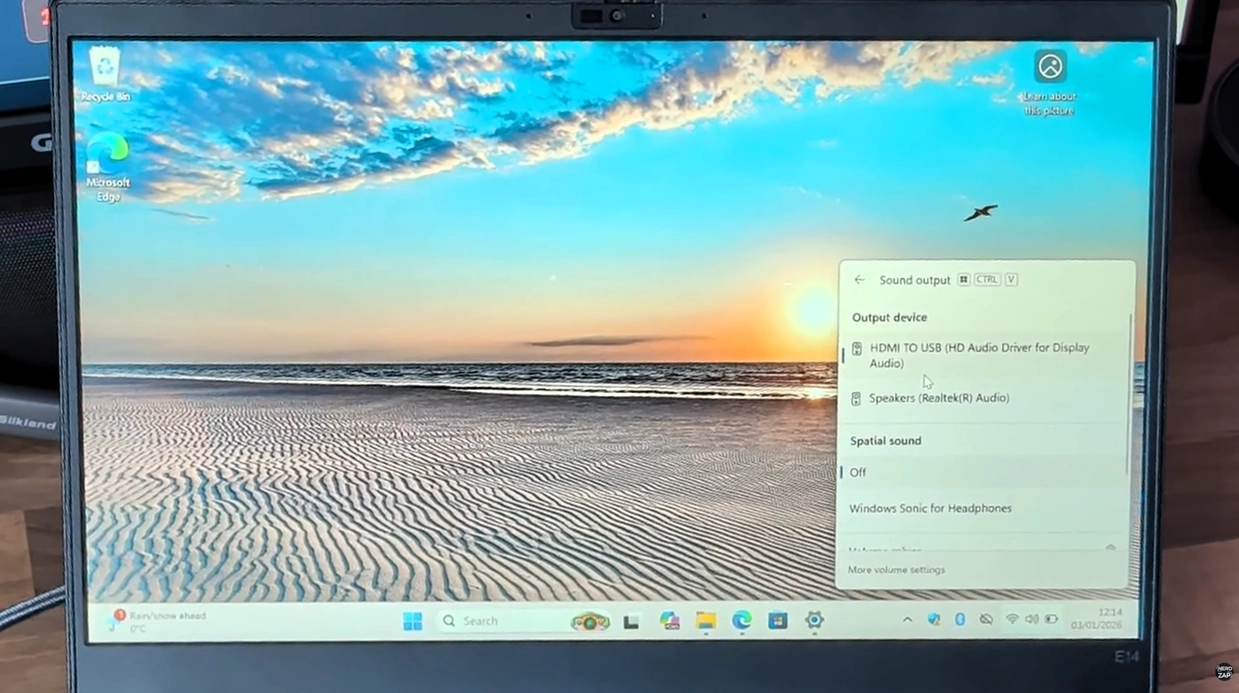
- On Windows, click the Speaker icon in the taskbar.
- Select the capture card (often named "Digital Audio Interface" or similar) as your output device.
Step 5: Enjoy!
You're all done, it's that simple!
Found this guide helpful?
Support the channel to help me create more tools and guides!