Perfect PC Game Streaming to TV (Zero Latency)
Learn how to stream games from your powerful gaming PC upstairs to your TV downstairs with full HDR support and virtually no input lag.
📌 Key Takeaways
- Low Latency: Uses the open-source Sunshine and Moonlight protocol (based on Nvidia GameStream) for near-instant response times.
- Full HDR Support: Capable of streaming high-dynamic-range signals for crisp, vibrant visuals on OLED TVs.
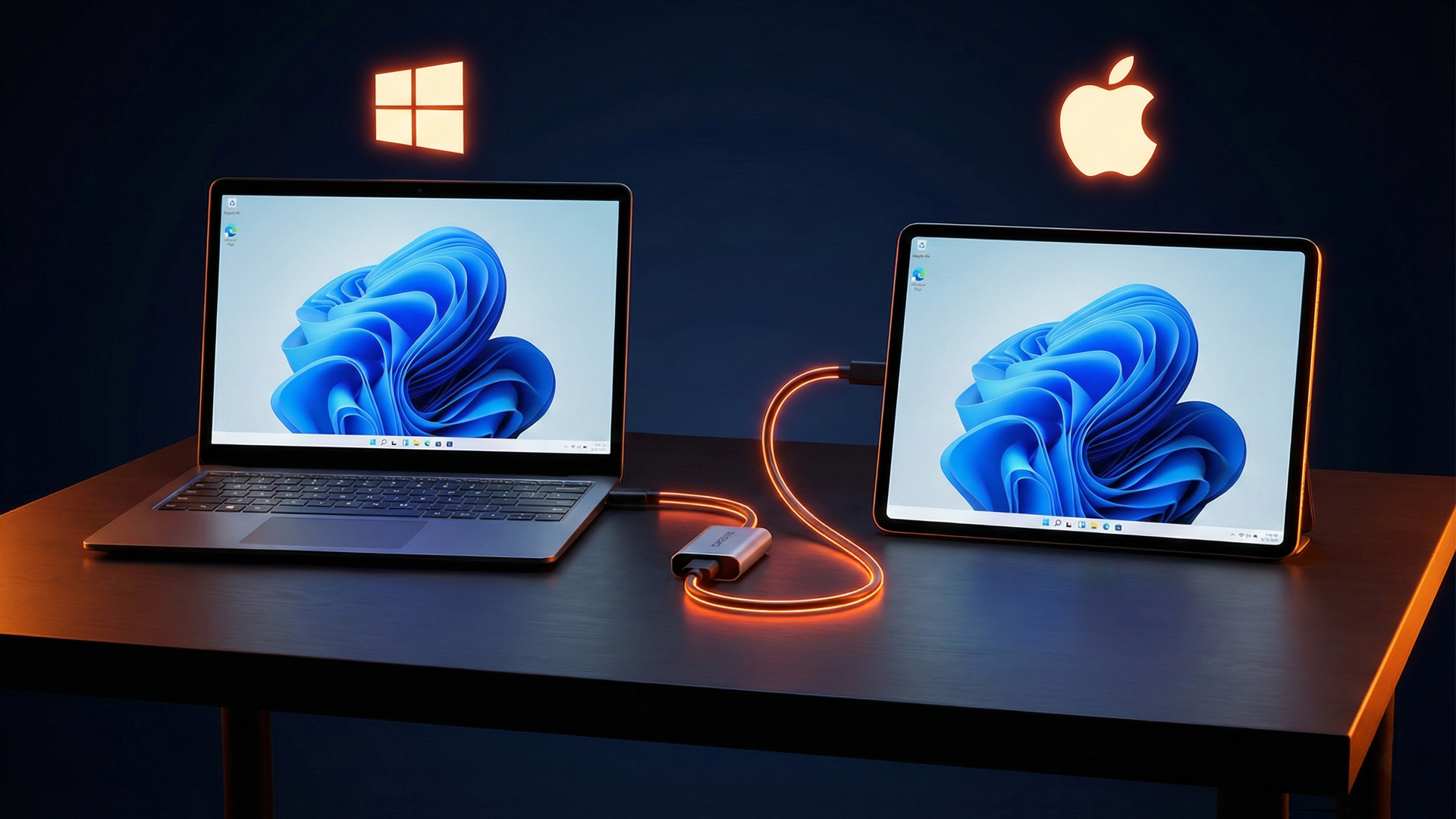
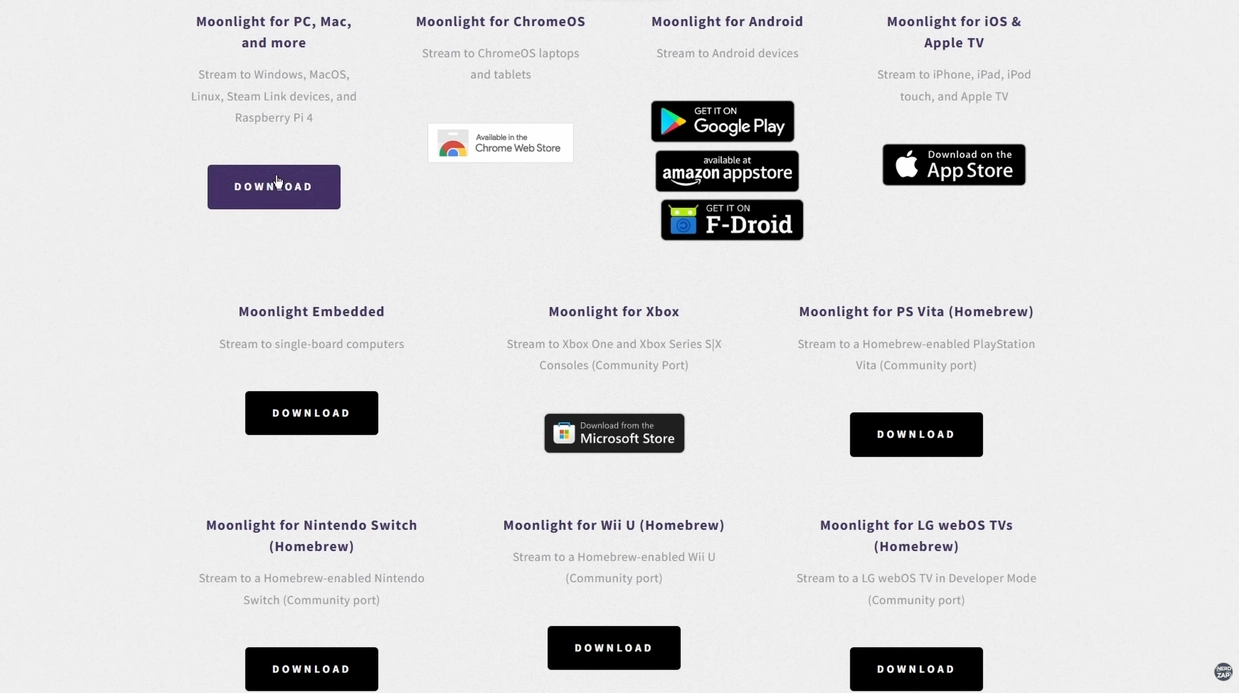
- Device Flexibility: The client (Moonlight) works on Steam Deck, Android, Apple TV, and many other devices.
You will need the following software:
Moonlight Client (For TV/Device) Sunshine Host (For PC)Step 1: Choose and Install the Client (Moonlight)
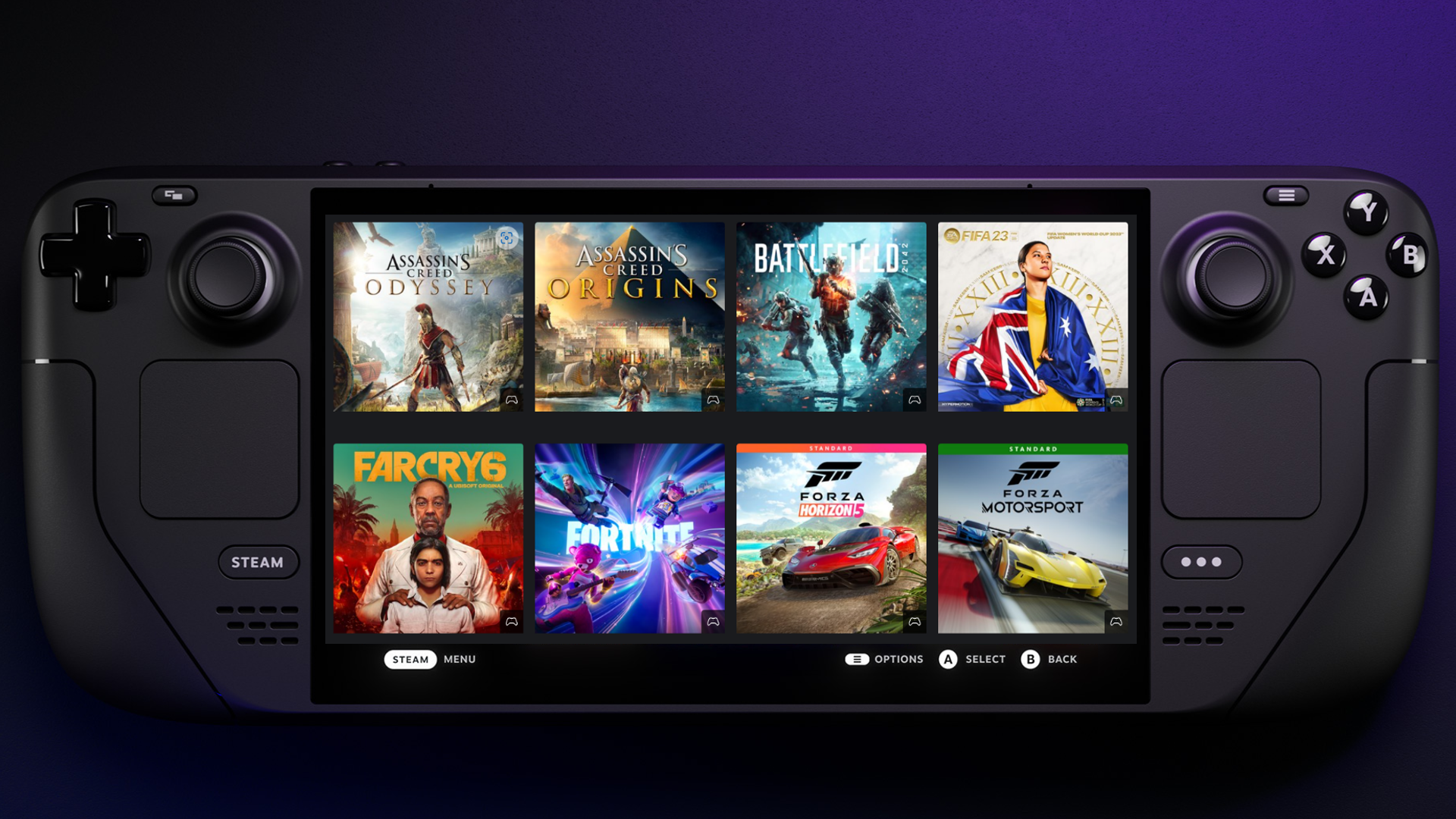
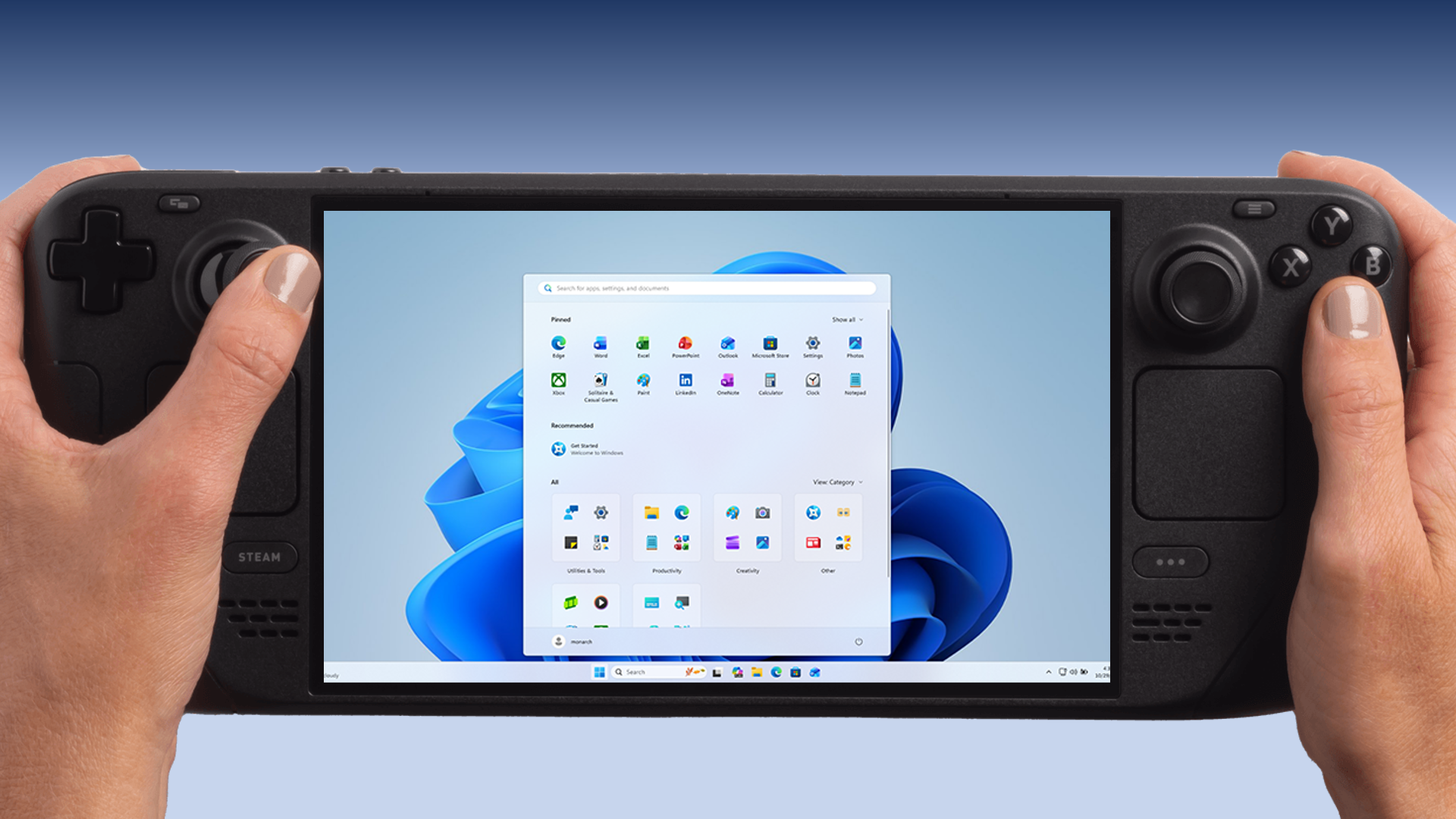
First, identify the device connected to your TV that will receive the stream. This could be an Apple TV, Android box, or a laptop. In this guide, we are using a Steam Deck docked to the TV.
- Head to the Moonlight website to find the installer for your specific device.
- For Steam Deck: Switch to Desktop Mode, open the Discover Store, search for "Moonlight," and install it.
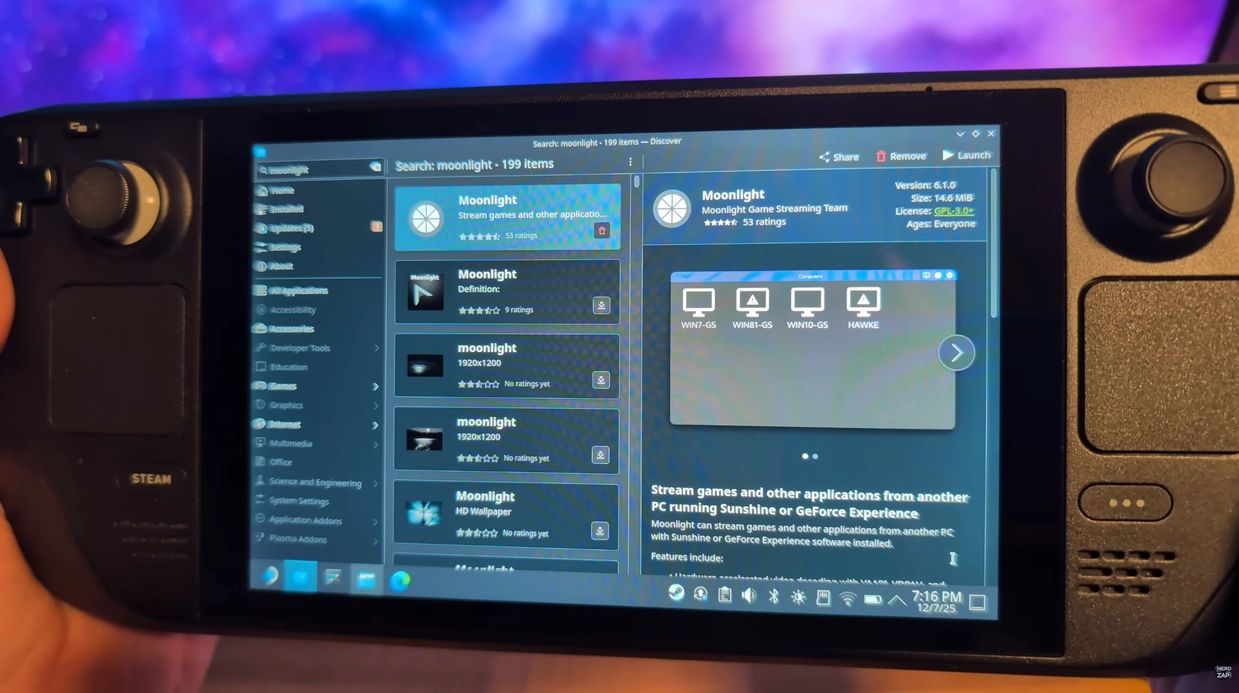
Tip: Connect your client device via Ethernet if possible for the best stability, though decent 5GHz Wi-Fi can also work well.
Step 2: Install Sunshine on the Host PC
Sunshine is the software that runs on your gaming PC to broadcast the signal.
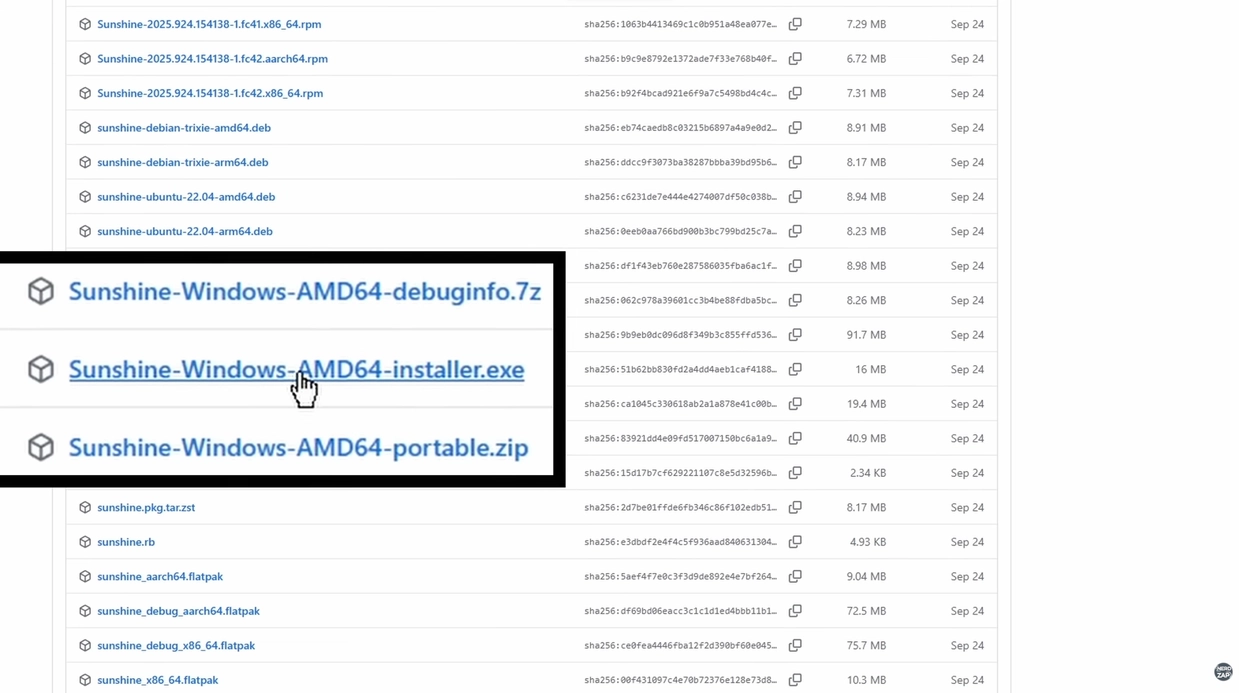
- Go to the Sunshine GitHub releases page.
- Download the installer for Windows (usually the
installer.exe). - Install the software. Once finished, a Sunshine icon will appear in your system tray.
Step 3: Configure Sunshine
Configuration is done via a web browser interface.
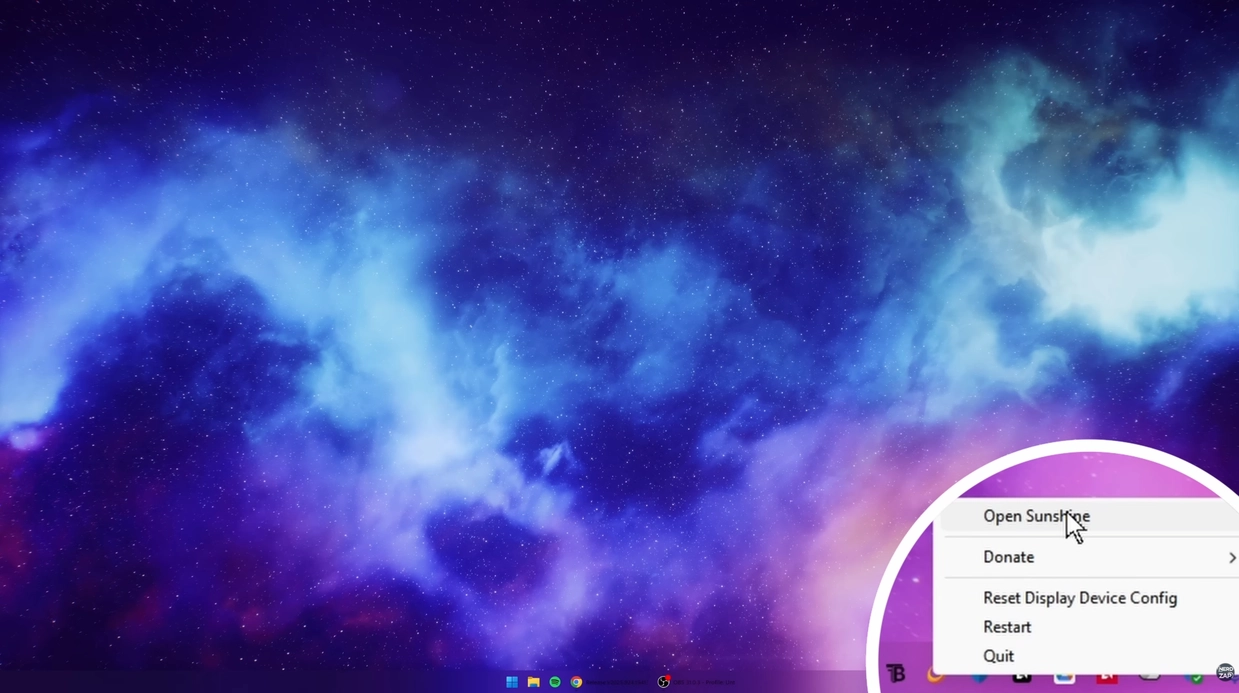
- Right-click the Sunshine icon in your system tray and select Open Sunshine.
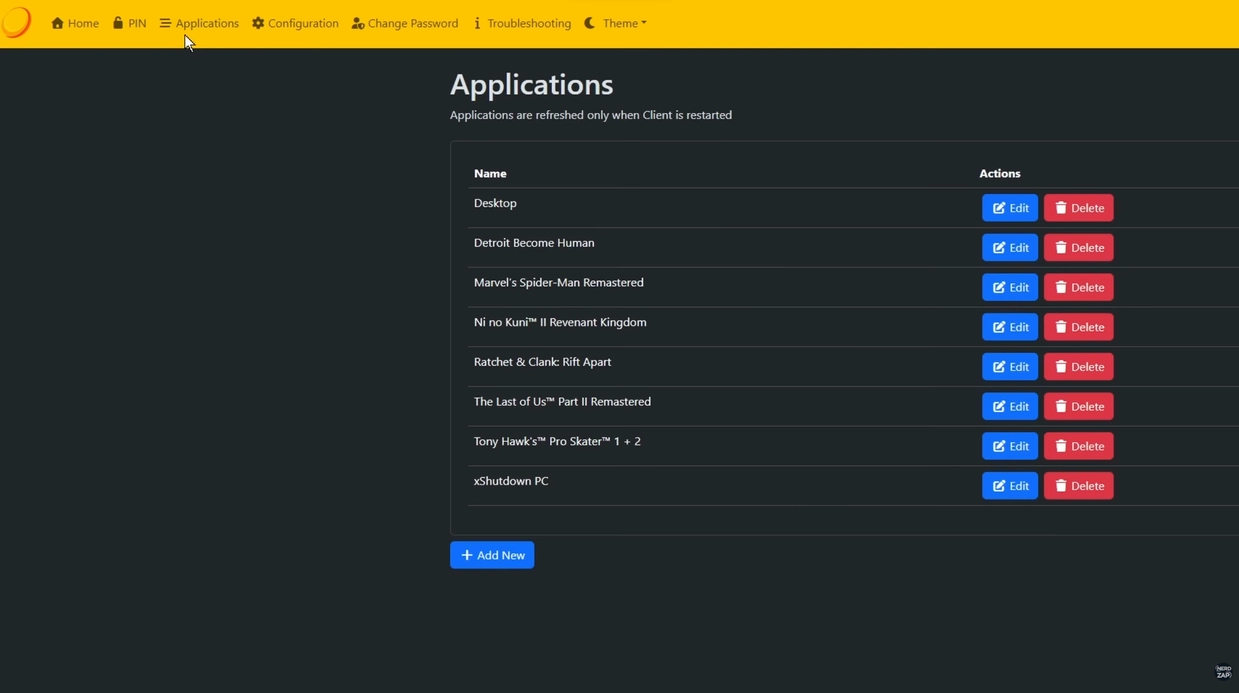
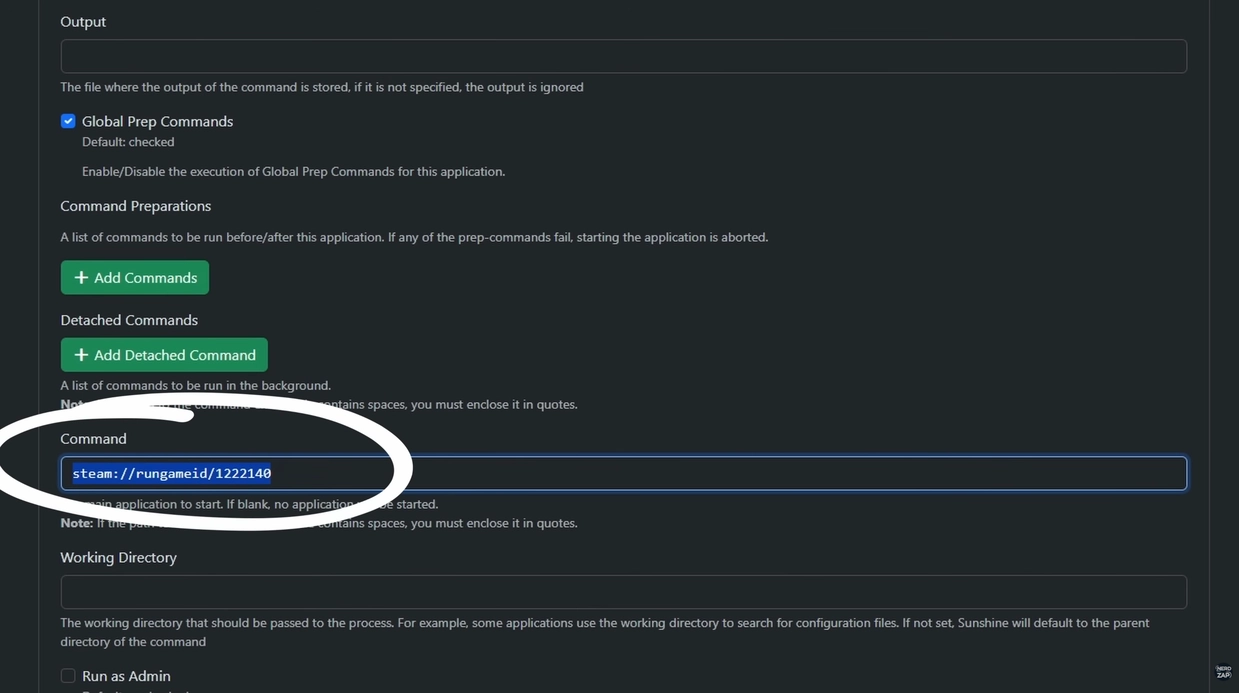
- Navigate to the Applications tab. Here you can add specific games or apps you want to launch directly.
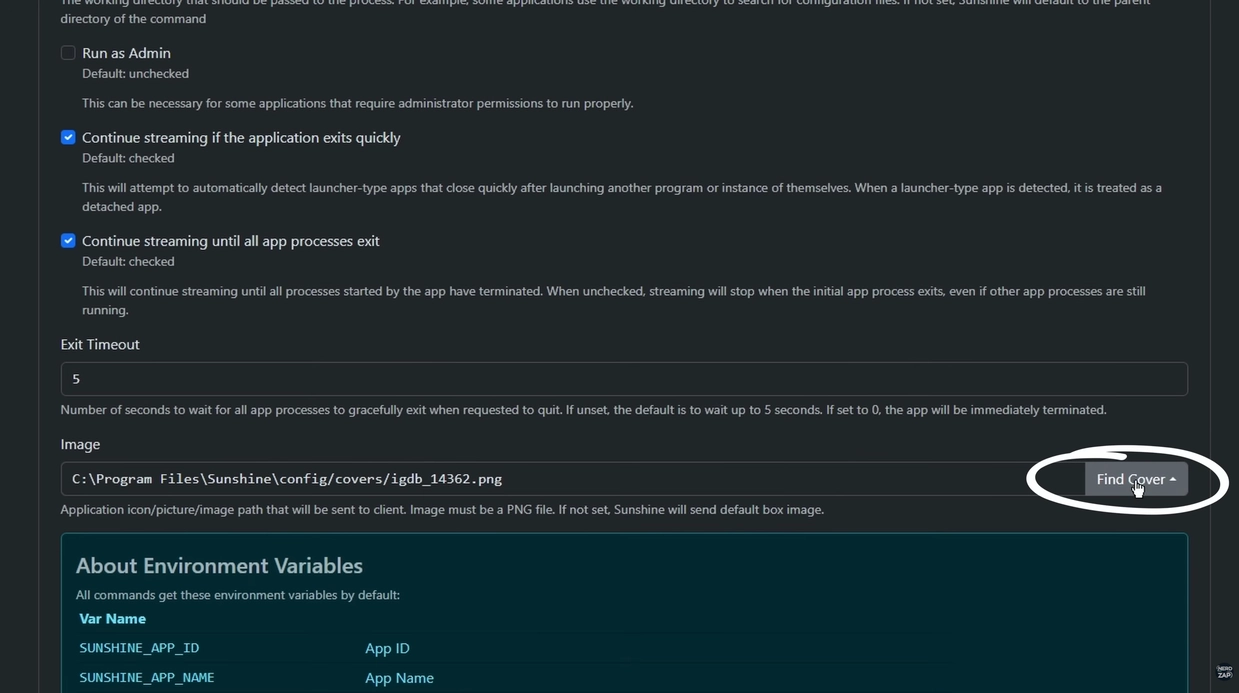
- Use the Command field to point to the game's executable or launcher. You can also add cover art here.
Optional: Using a Dummy HDMI Plug
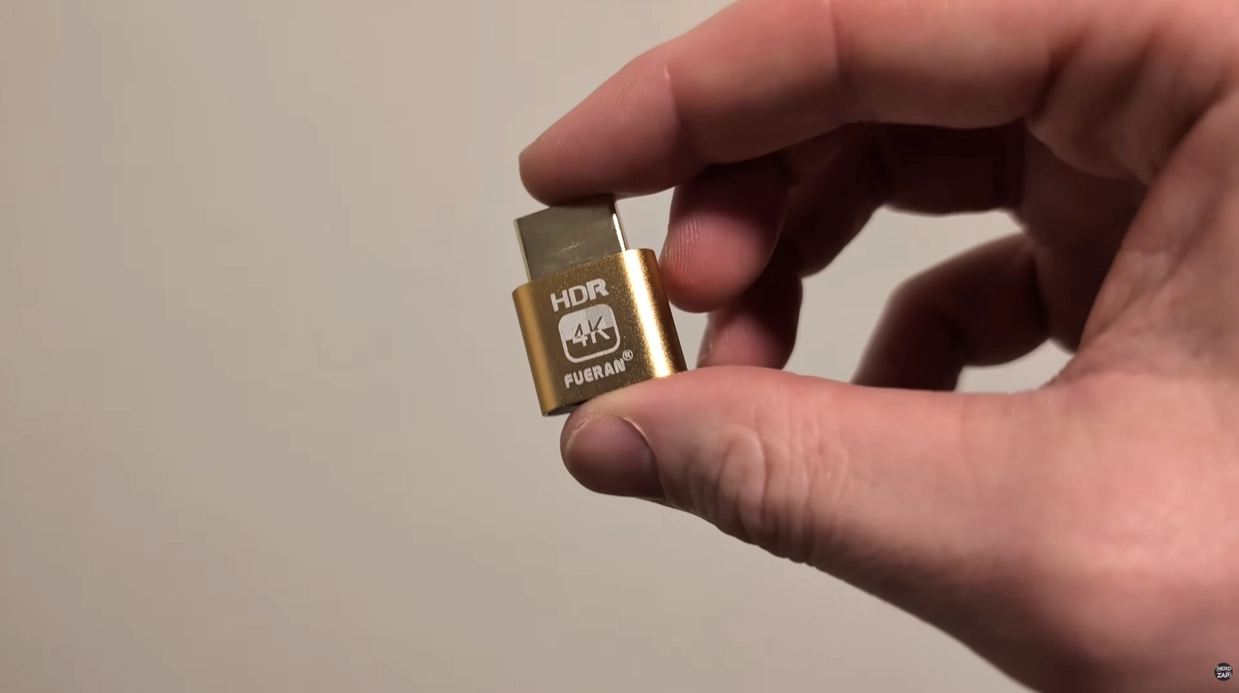
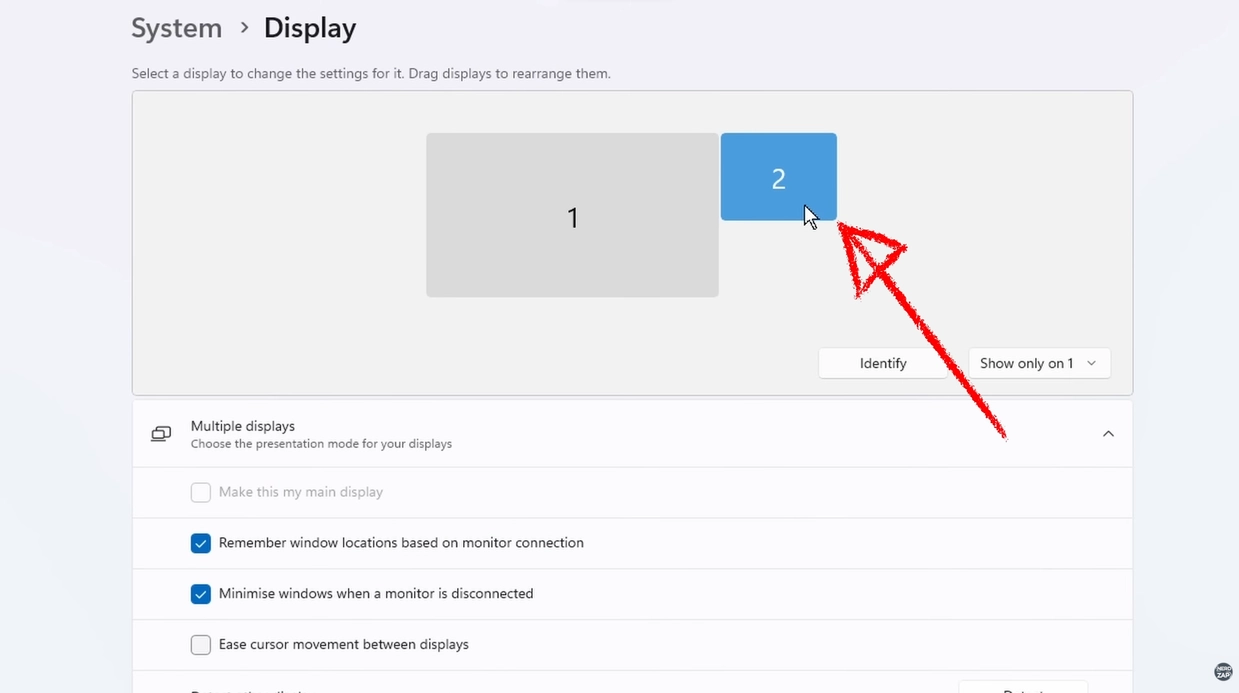
If you want to stream at 4K or use HDR while your main monitor is different (or turned off), consider using a cheap HDMI dummy plug.
- Plug the dummy dongle into your GPU.
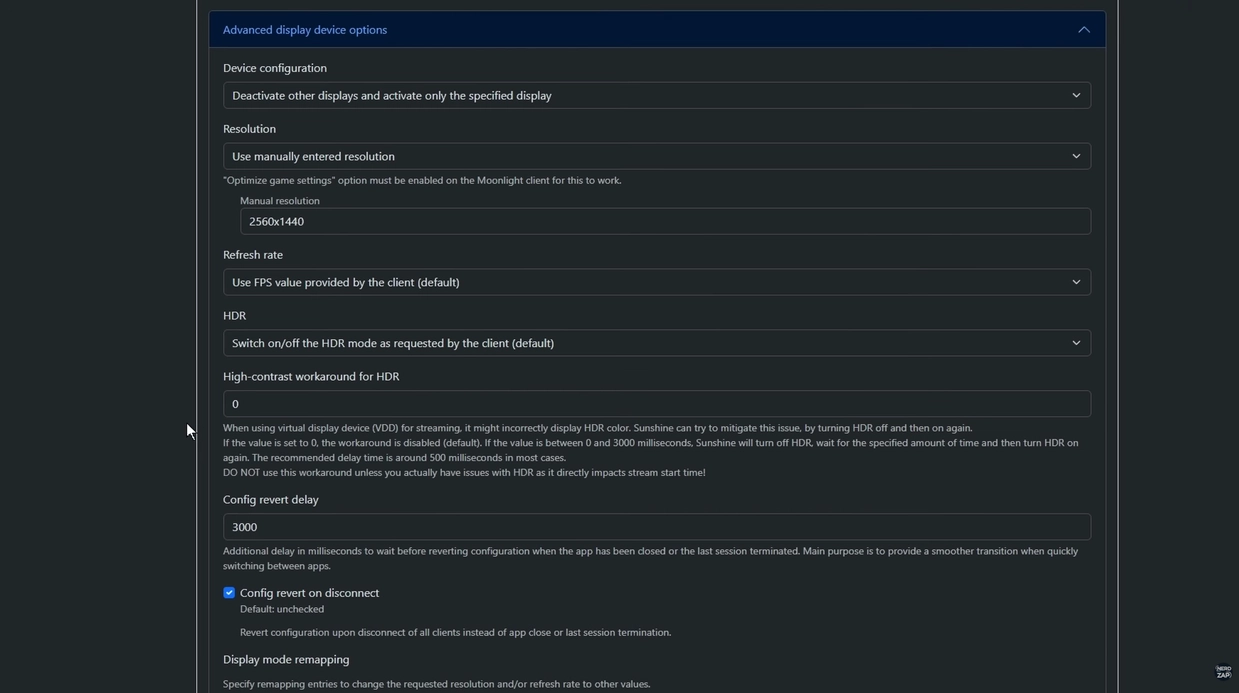
- In Windows Display Settings, set it to the resolution you want to stream (e.g., 4K) and enable HDR.
- In Sunshine's Configuration > Video settings, set it to capture this specific display name.
Step 4: Connect via Moonlight
Now, link the two devices.
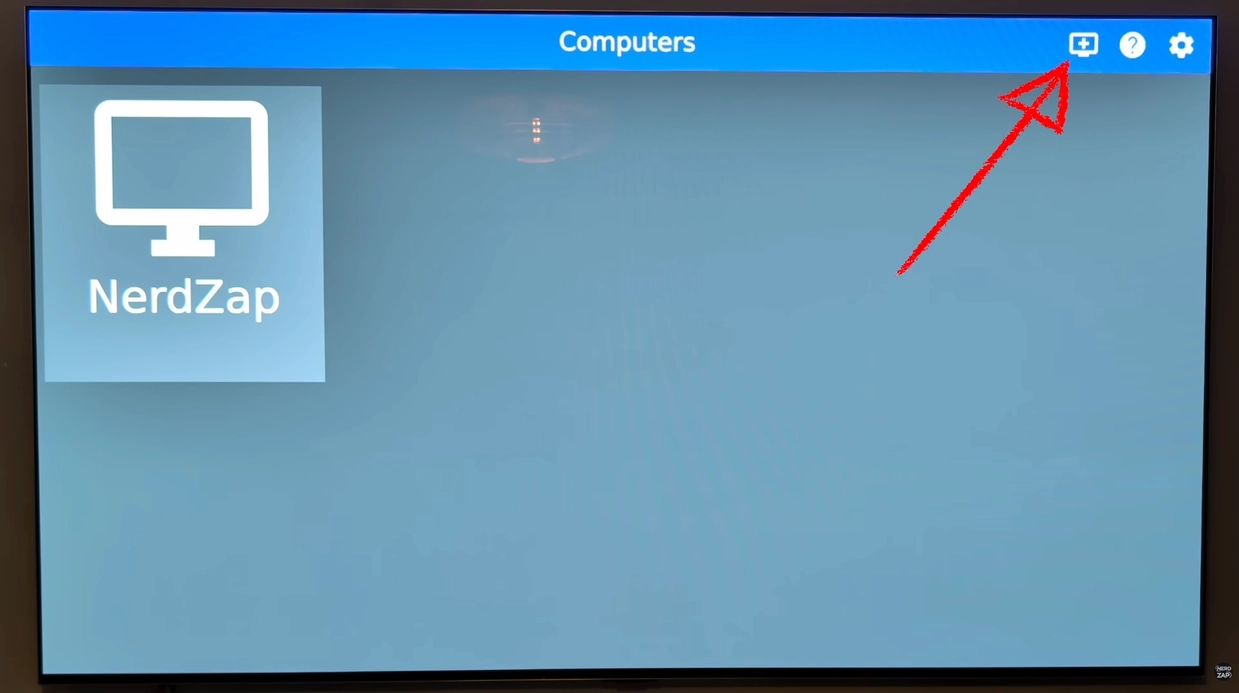
- Open the Moonlight app on your TV/Steam Deck.
- Your PC should appear automatically if it's on the same local network. If not, click the "Plus" icon and enter your PC's IP address manually.
- Select your PC. You may need to enter a PIN on your PC to authorize the connection for the first time.
Step 5: Optimize Stream Settings
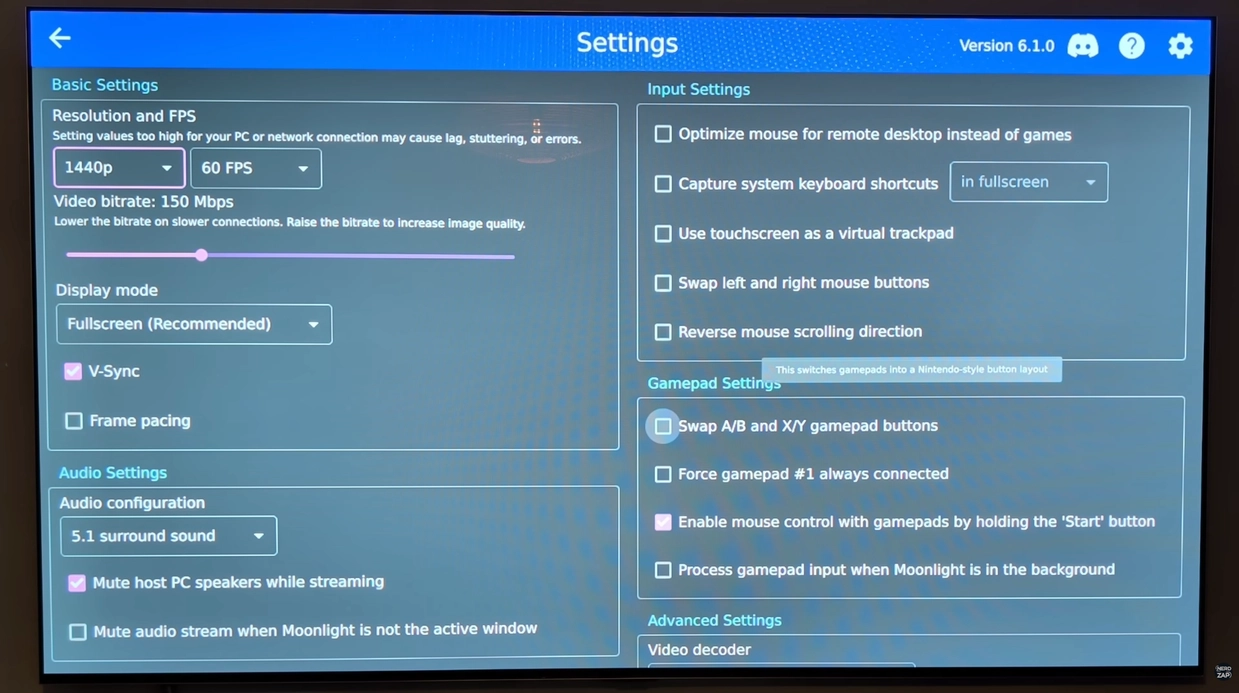
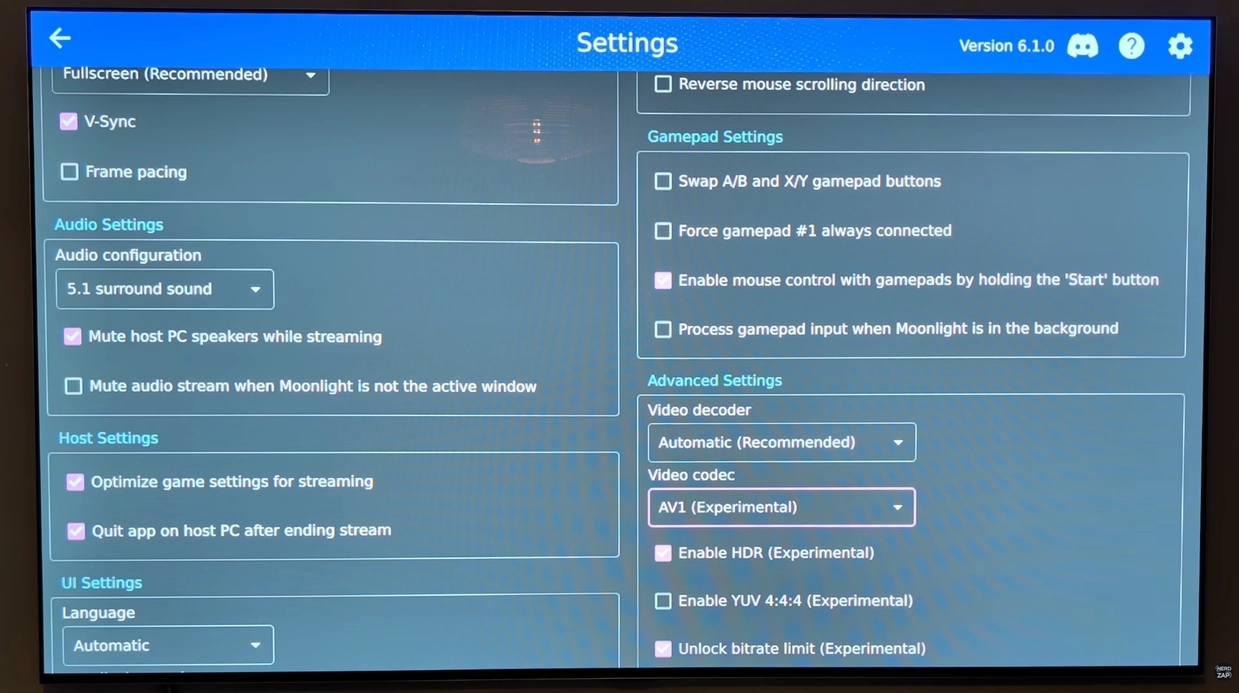
Before launching a game, adjust the settings in Moonlight (usually accessible by pressing 'Y' or the Settings cog) to match your network capability.
- Resolution: 1440p or 4K (depending on your bandwidth). 1440p often offers the best balance of quality and latency.
- Frame Rate: 60 FPS (or higher if your network allows).
- Video Codec: Set to AV1 if your hardware supports it for better compression.
- HDR: Enable "HDR Experimental" if your TV supports it.
- Surround Sound: Enable 5.1 Surround if you have a compatible sound system.
Step 6: HDR Calibration & Troubleshooting
To ensure colors look correct on your TV:
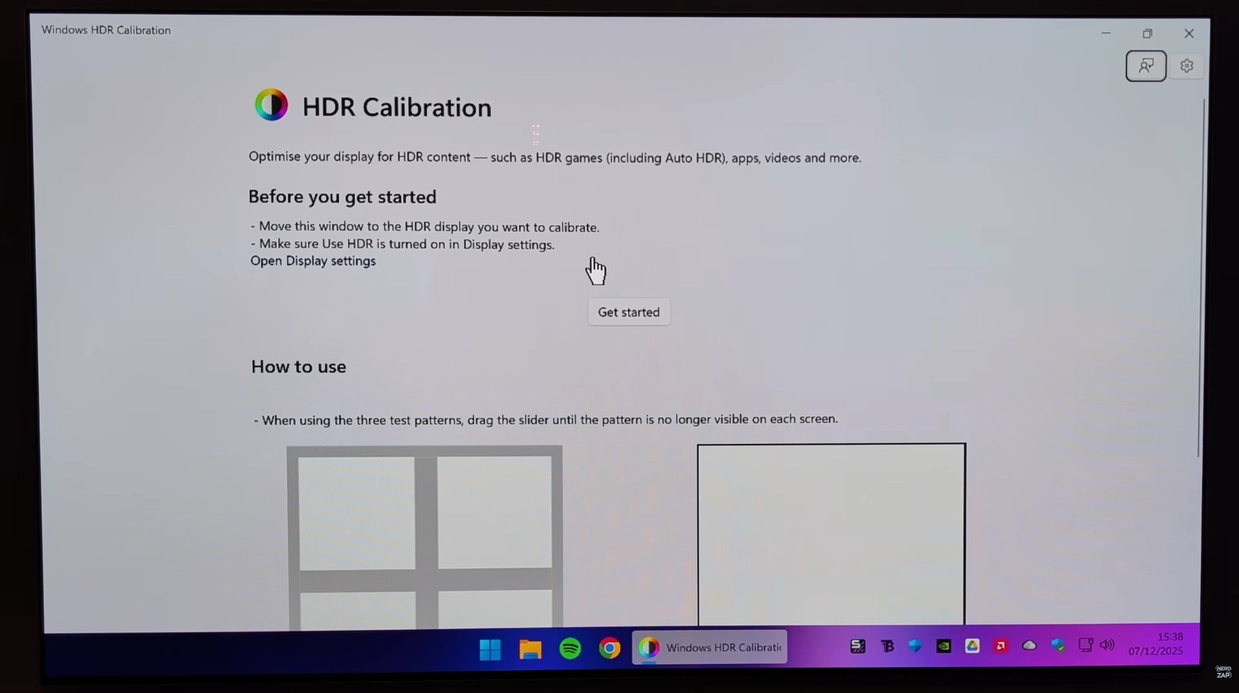
- Download the Windows HDR Calibration app from the Microsoft Store on your PC.
- Run the calibration tool while you are streaming to the TV to generate a profile specifically for that display.
Monitoring Performance:
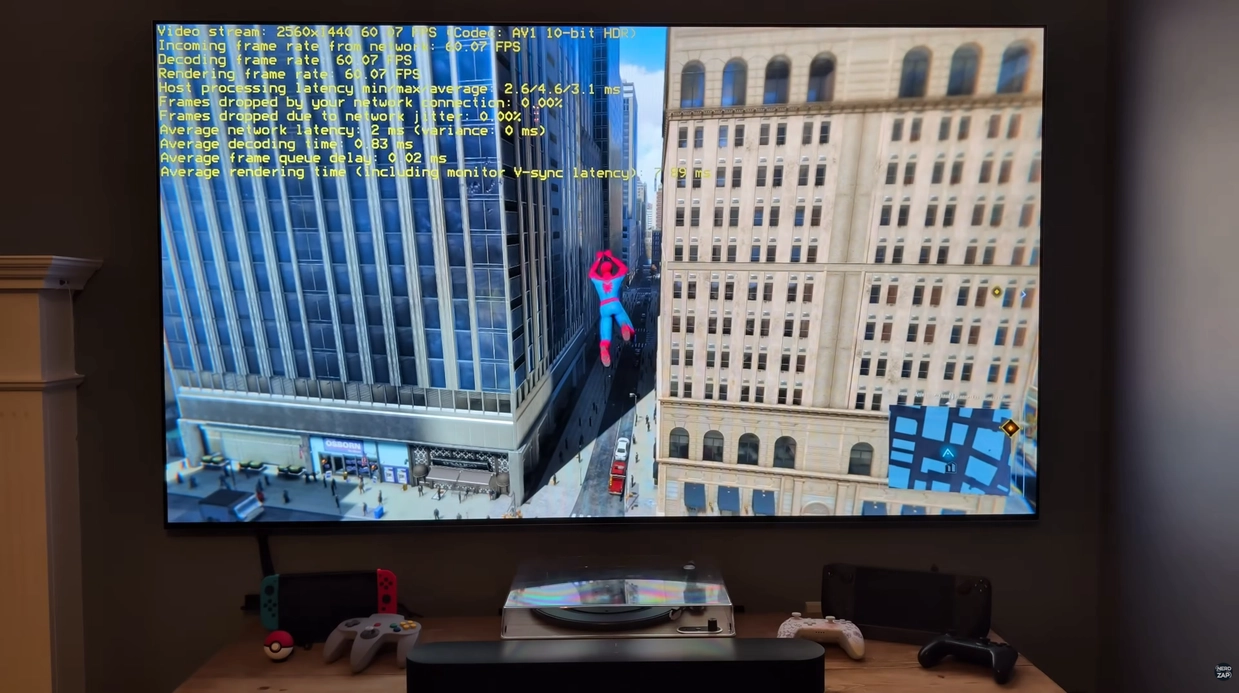
If you experience lag, enable Show Performance Stats in the Moonlight settings. This overlay helps you identify network spikes or latency issues.
Step 7: Launch and Play
Select a game from the Moonlight menu to launch it. The stream should be crisp, and if configured correctly, indistinguishable from running the hardware locally.
To exit a stream using a controller, hold Start + Select + L1 + R1 (or the equivalent combo for your controller) to open the Moonlight overlay and quit the session.
Found this guide helpful?
Support the channel to help me create more tools and guides!