Add Streaming Apps to Your Steam Deck Library
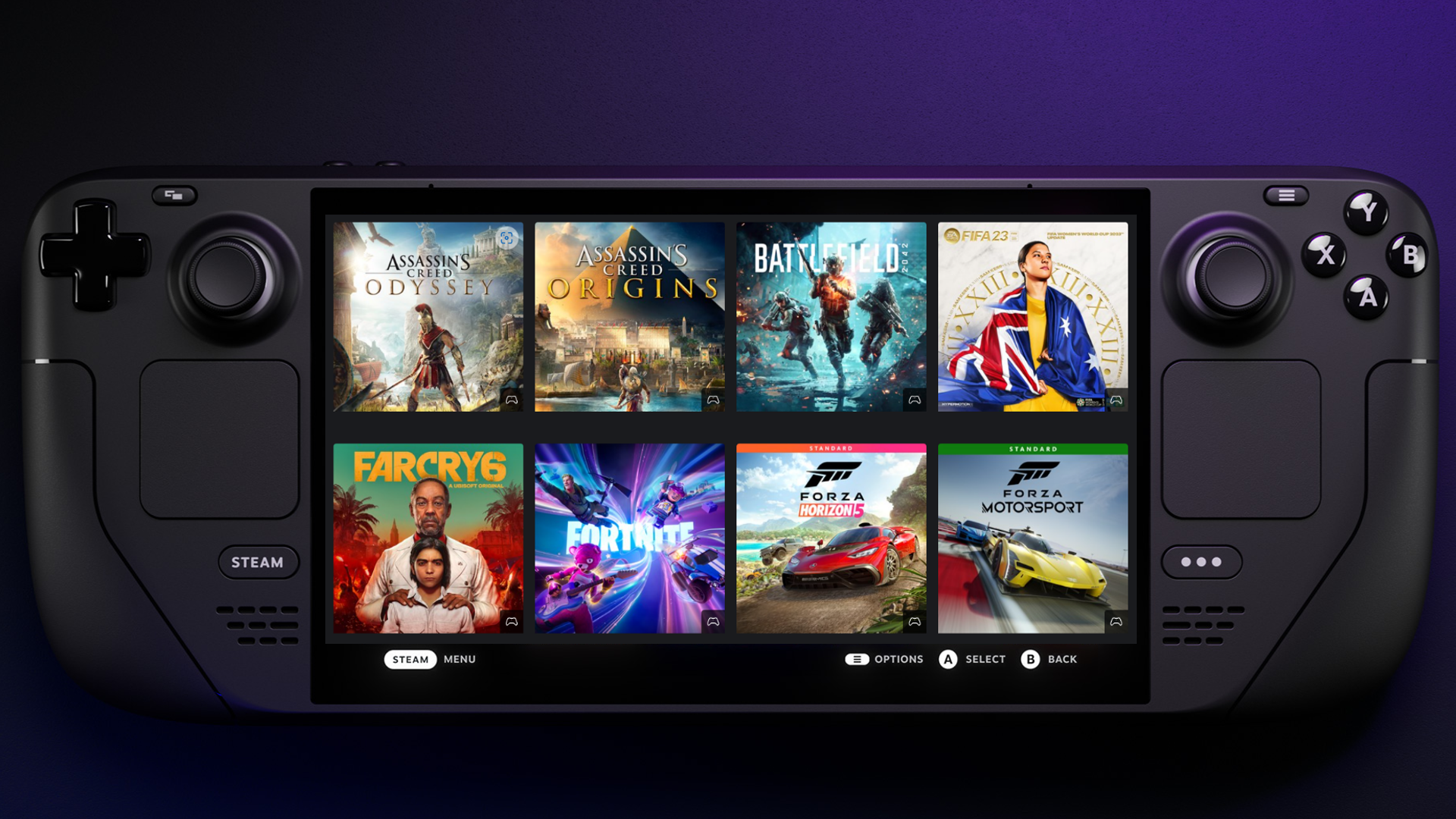
While the Steam Deck is a gaming powerhouse, it is also a fantastic device for media consumption. This guide shows you how to integrate services like Netflix, Disney+, and YouTube directly into your Steam Library for easy access in Gaming Mode.
📌 Key Takeaways
- Native Integration: Launch streaming services directly from your Steam library like a regular game.
- Broad Compatibility: Supports Netflix, Disney+, YouTube, Prime Video, Hulu, and many others.
- One-Stop Solution: Uses EmuDeck's Cloud Services Manager to handle the technical setup for you.
📂 Downloads & Resources
You will need EmuDeck installed to follow this guide:
Official EmuDeck WebsiteStep 1: Preparation & Desktop Mode
To begin, we need to access the desktop environment to download the necessary tools.
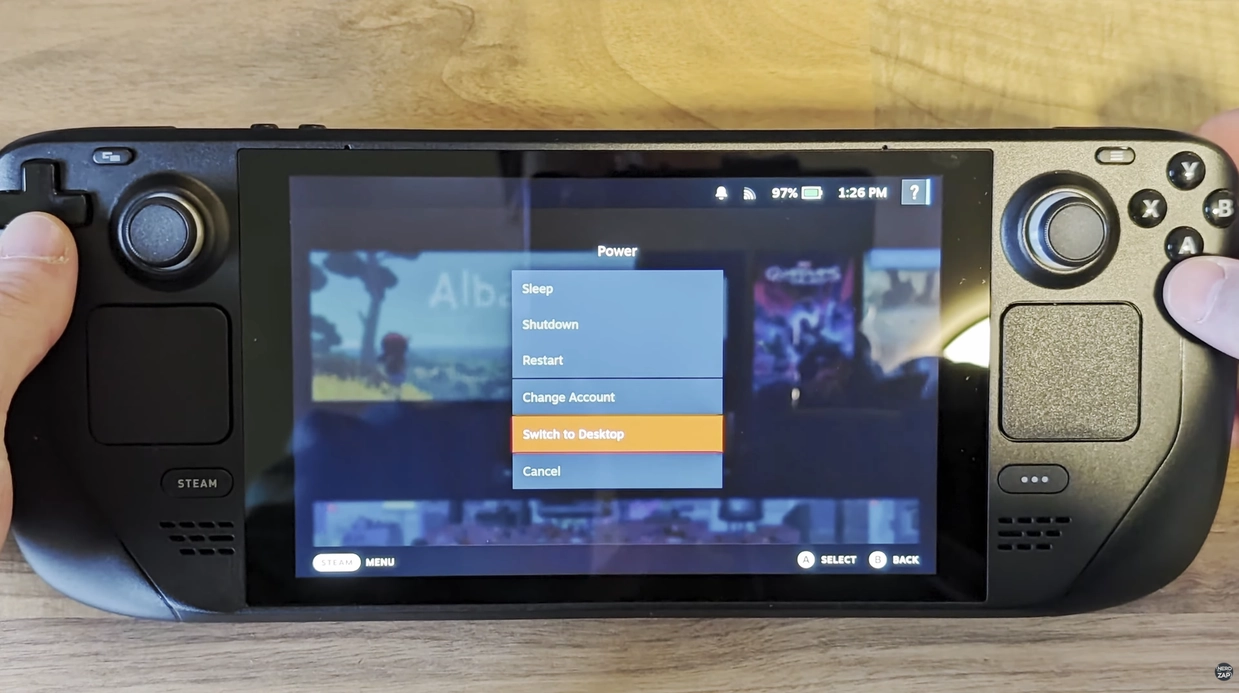
- Hold down the Power Button and select Switch to Desktop.
- Once in Desktop mode, use the trackpads to navigate. You can bring up the keyboard by holding Steam + X.
- If you don't have a web browser installed, open the Discover Store and install one (Microsoft Edge or Chrome is recommended).
Step 2: Install EmuDeck
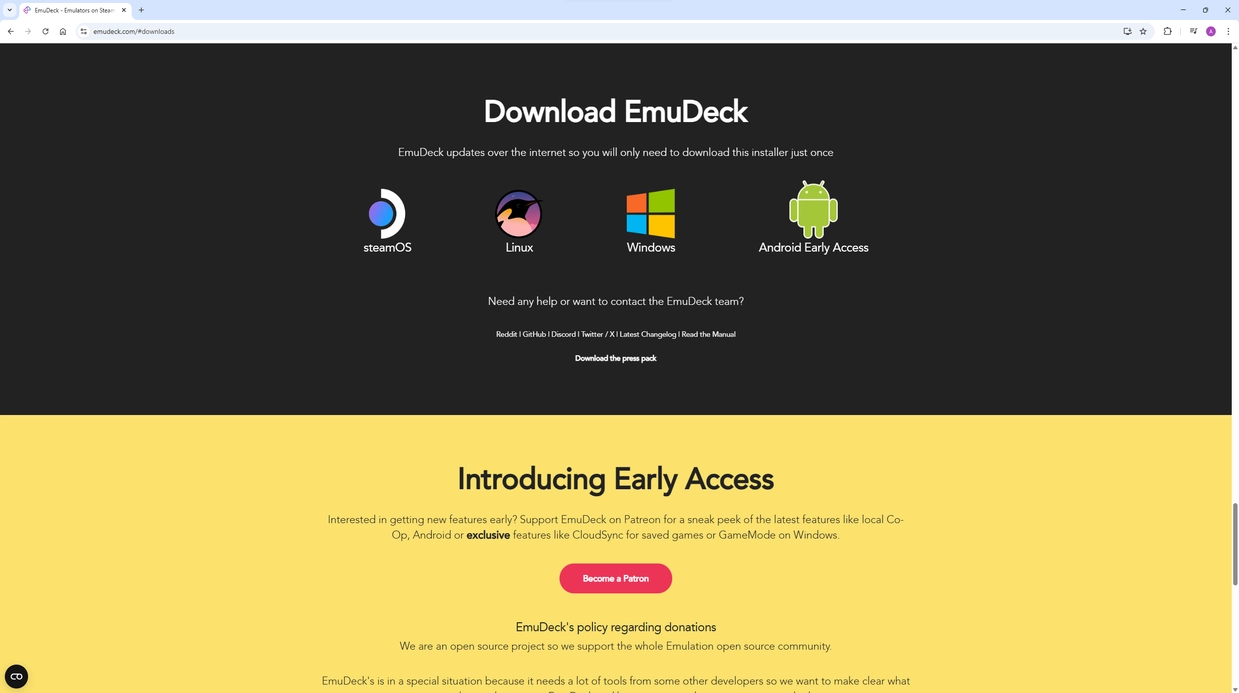
- Open your browser and navigate to emudeck.com.
- Click the Download option and choose the SteamOS version.
- Once downloaded, move the installer file from your Downloads folder to your Desktop.
- Run the file and follow the prompts to install EmuDeck.
Step 3: Configure Cloud Services
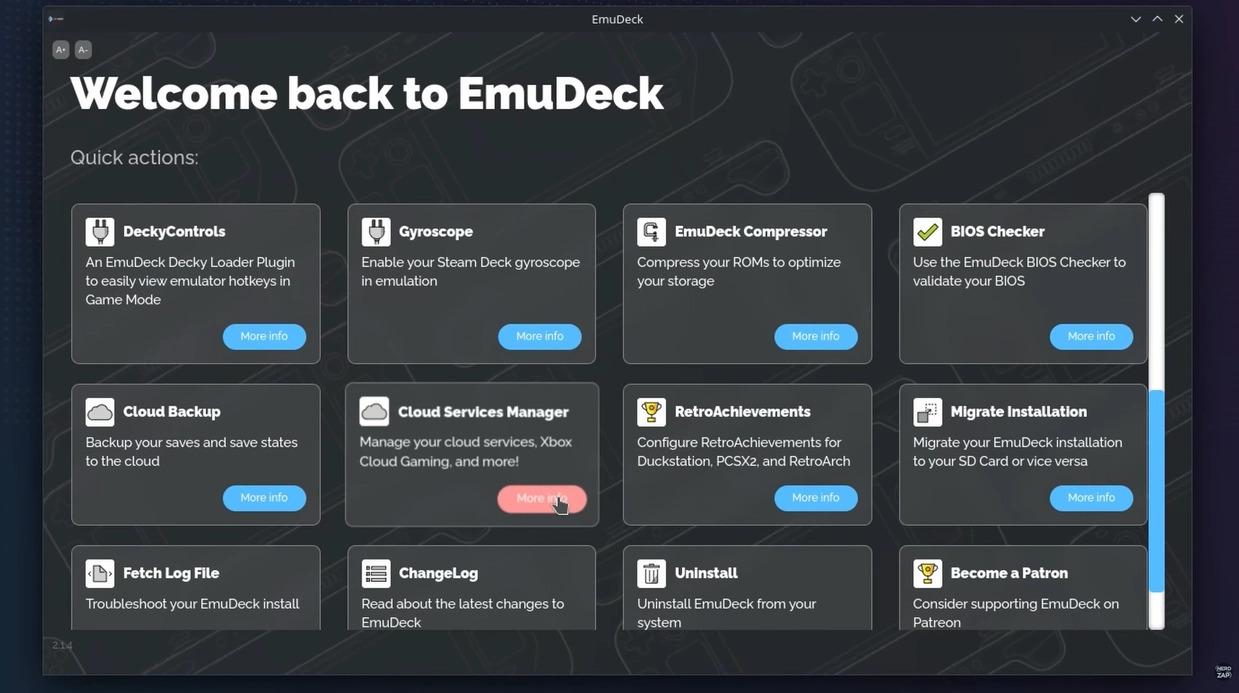
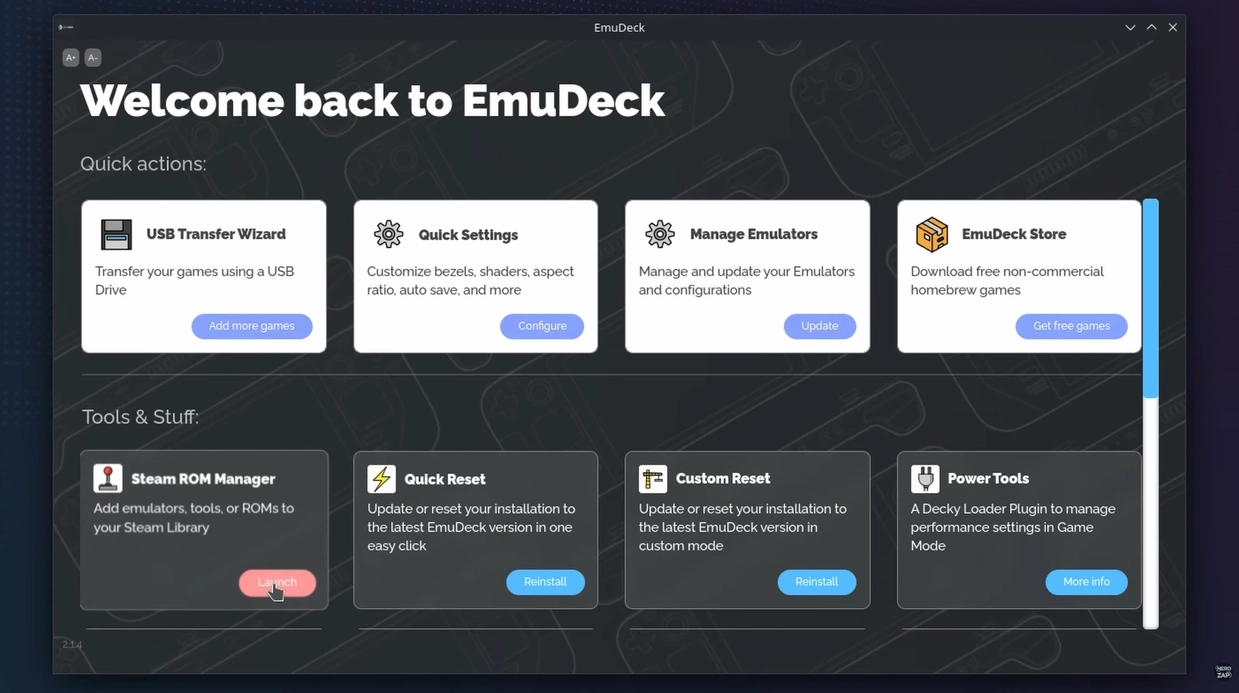
- Launch EmuDeck and select the Cloud Services Manager.
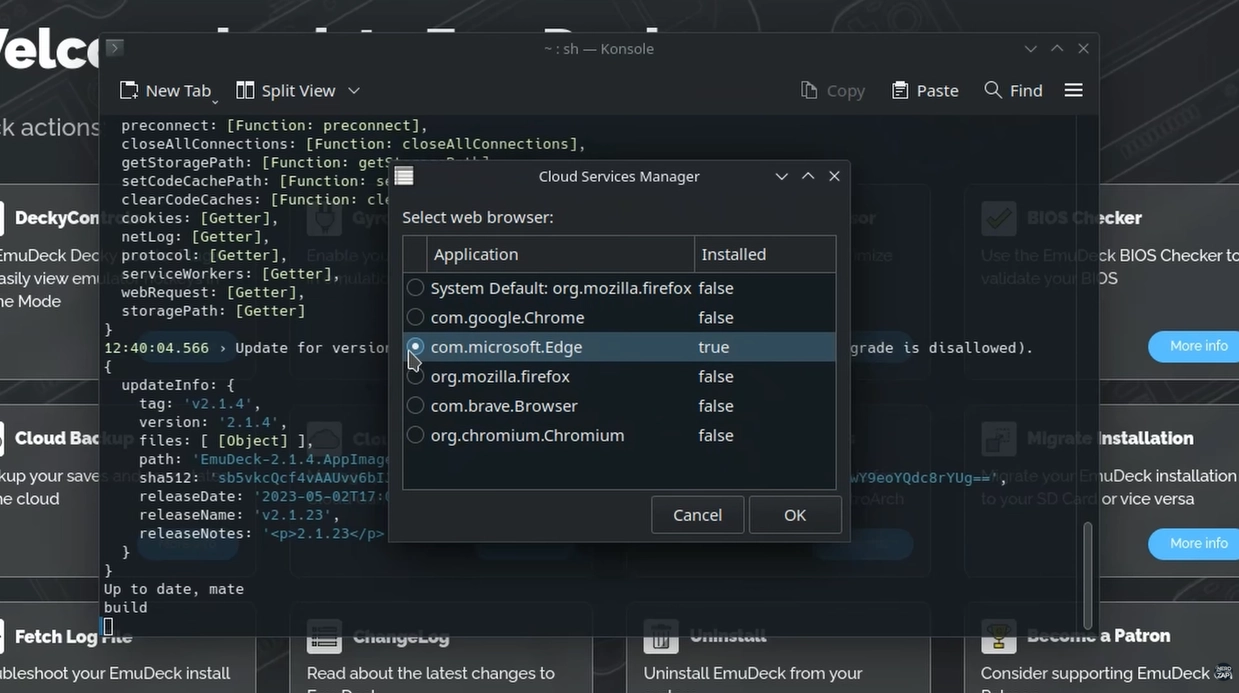
- Click Change Settings and select your preferred browser (e.g., Microsoft Edge). This browser will be used to launch your streaming apps.
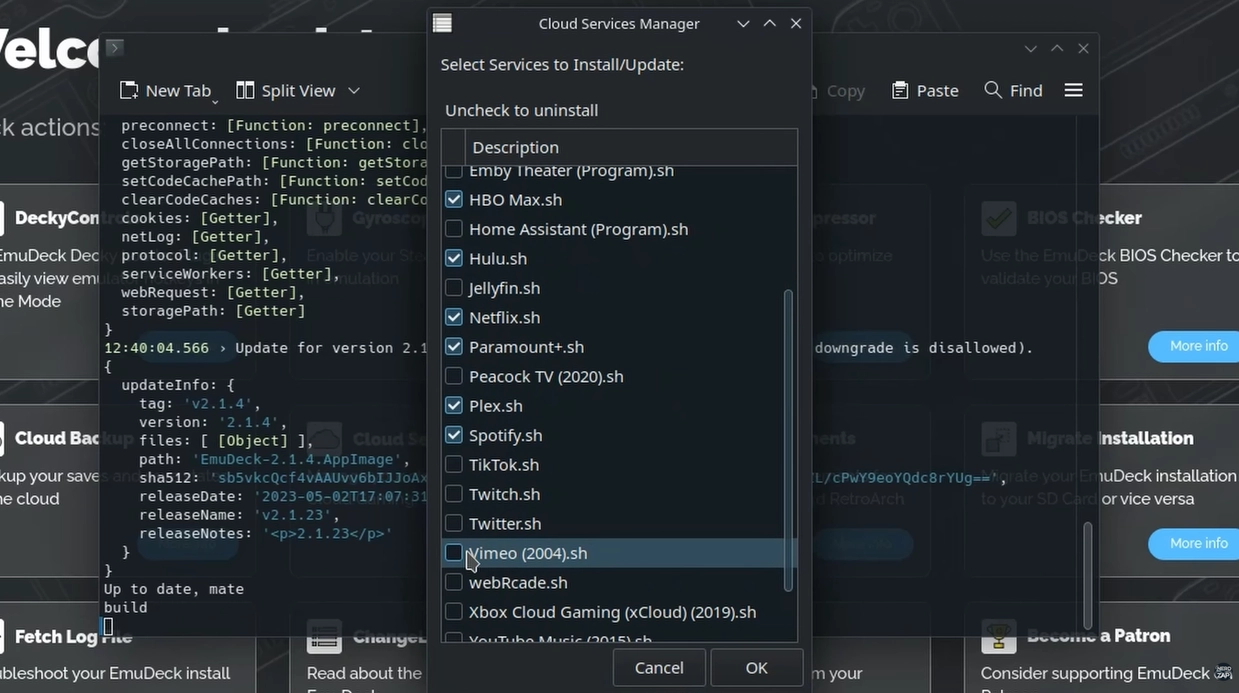
- Select Manage Cloud Services.
- Tick the boxes for all the streaming services you want to appear in your library (e.g., Netflix, Disney+, YouTube).
- Click OK to confirm and exit the manager.
Step 4: Import to Steam Library
- In EmuDeck, select Steam ROM Manager and click Yes to the prompt.
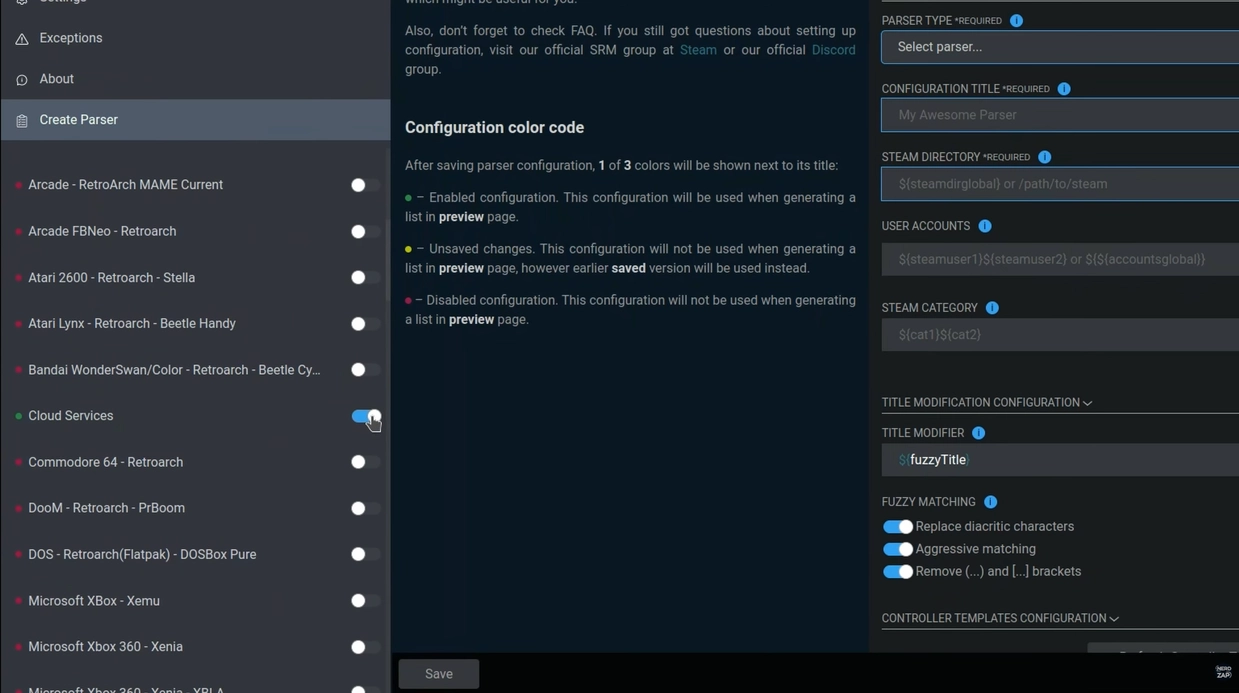
- Ensure the Cloud Services parser is toggled ON in the left-hand menu.
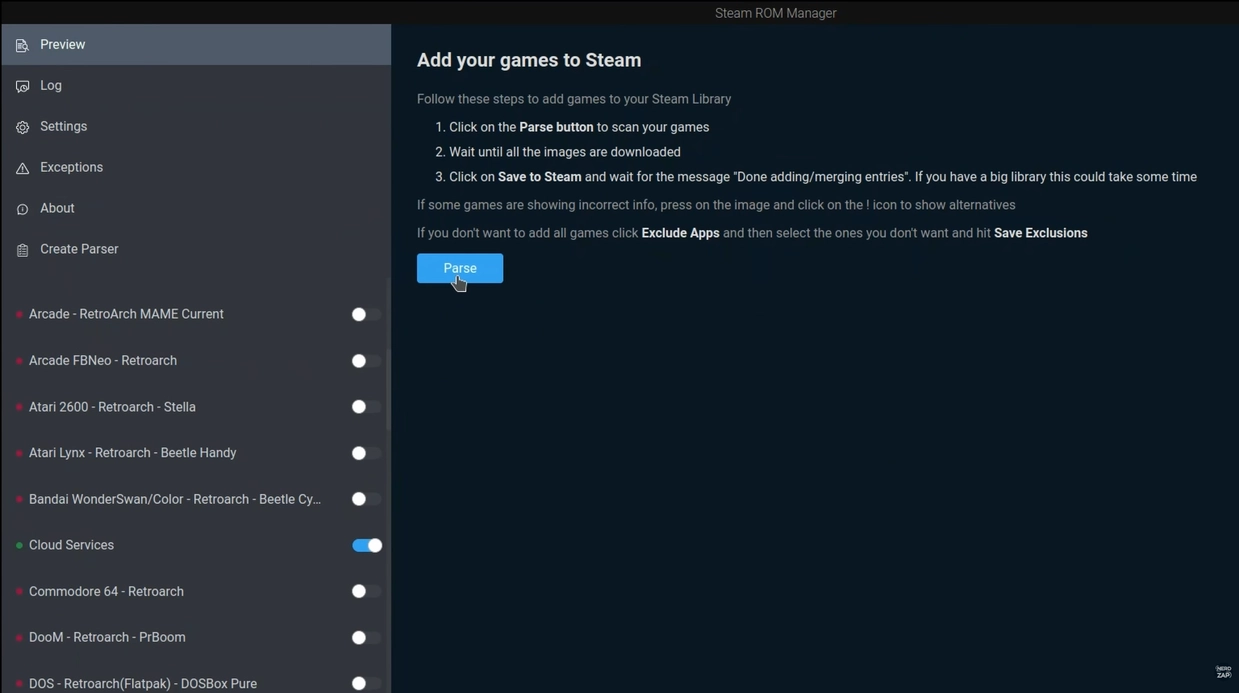
- Select Preview and then Parse. This will fetch the artwork and shortcuts for your chosen apps.
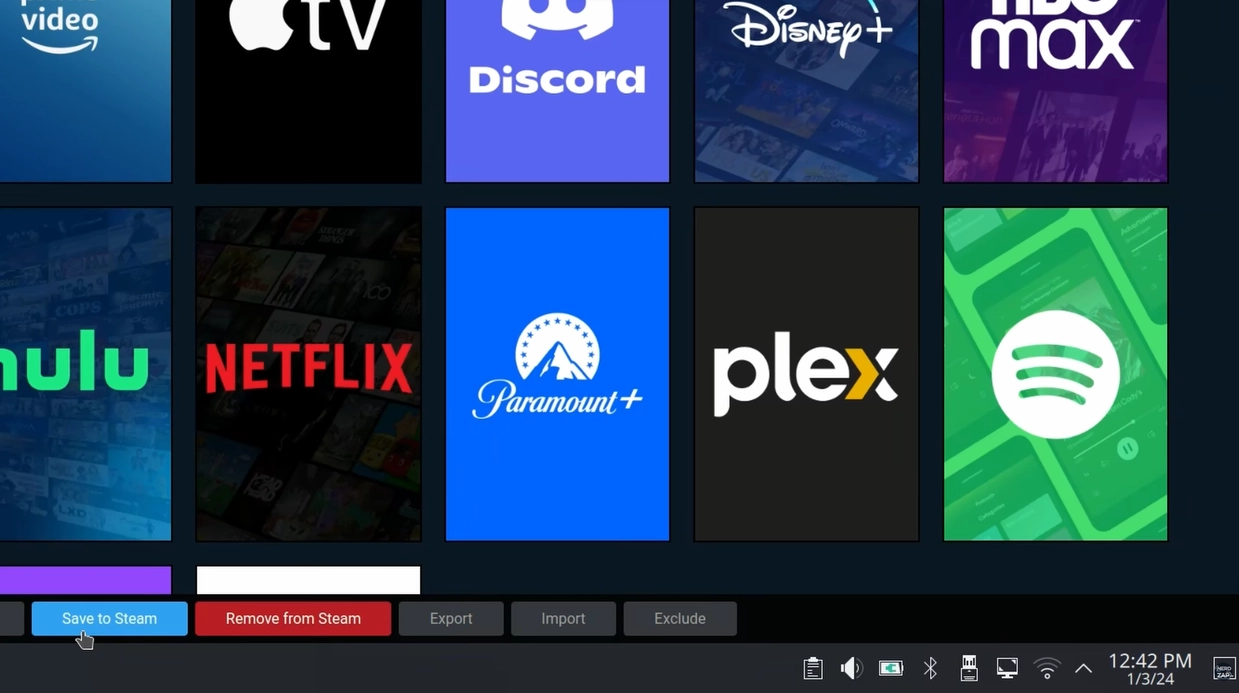
- Click Save to Steam and wait for the "Done" notification.
Step 5: Controller Setup & Play
- Return to Gaming Mode.
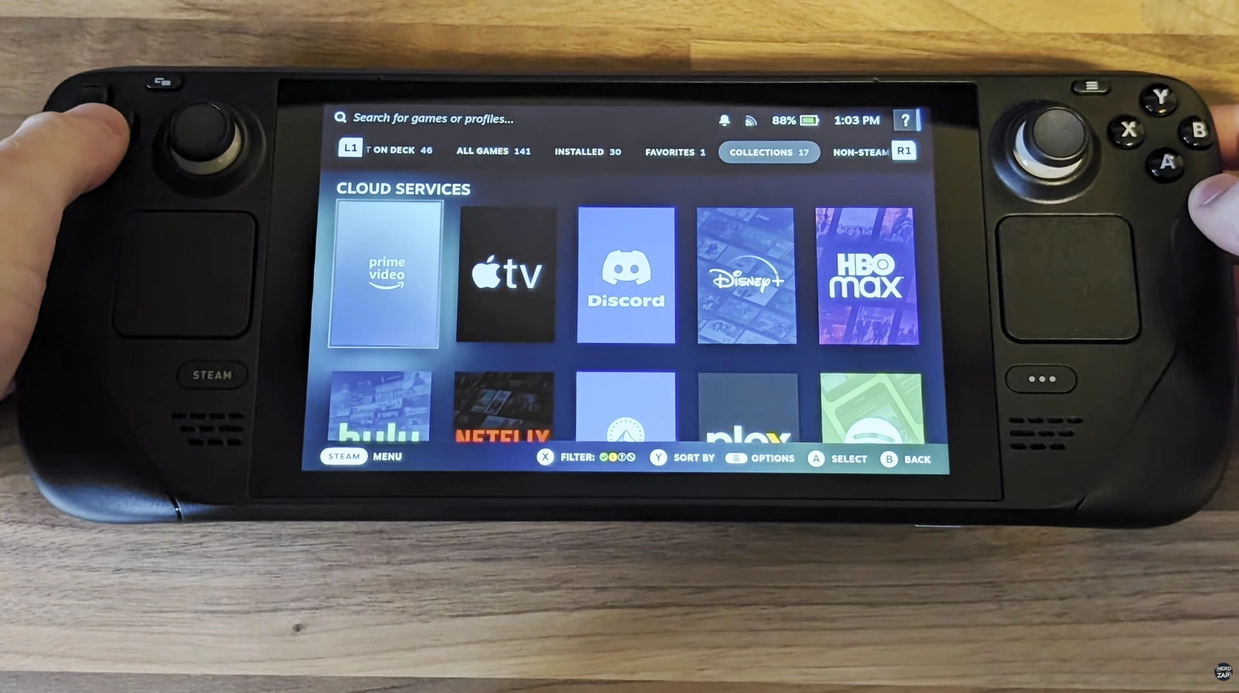
- Open your Library and look for the Cloud Services collection.
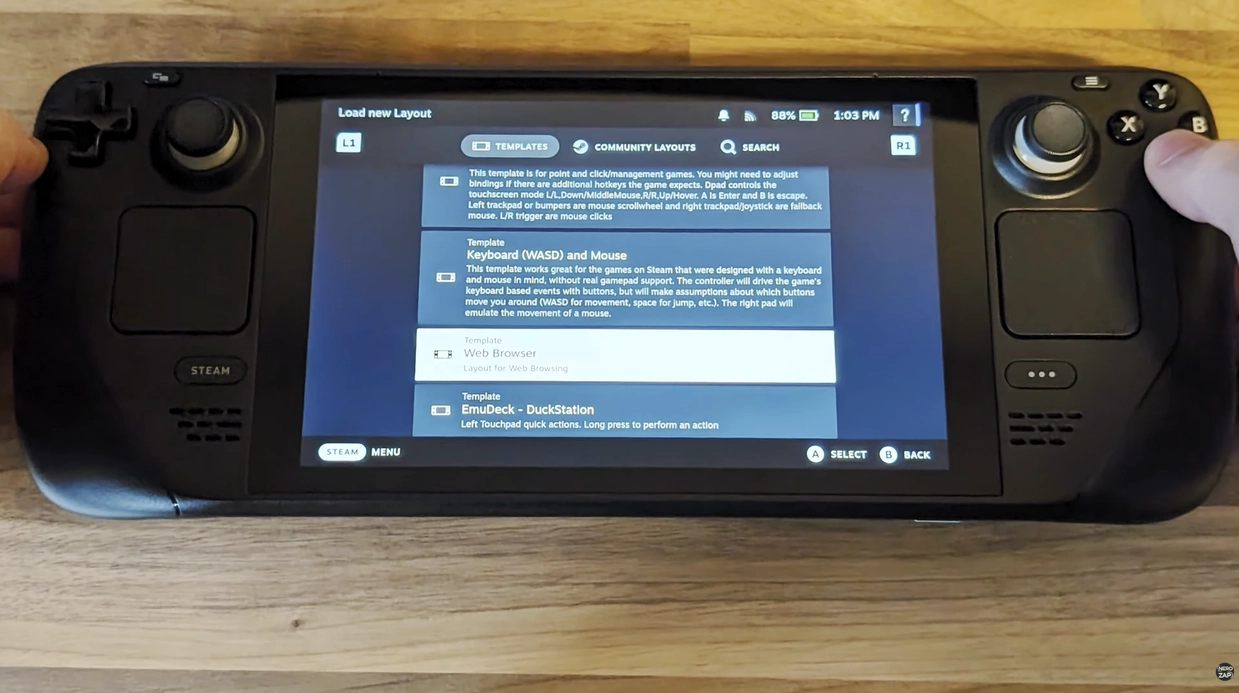
- Before launching an app, tap the Controller Icon and apply the Web Browser template. This ensures the trackpads work as a mouse for navigating menus.
... Subscribers
Found this guide helpful?
Support the channel to help me create more tools and guides!