Run Jak and Daxter Natively on Steam Deck
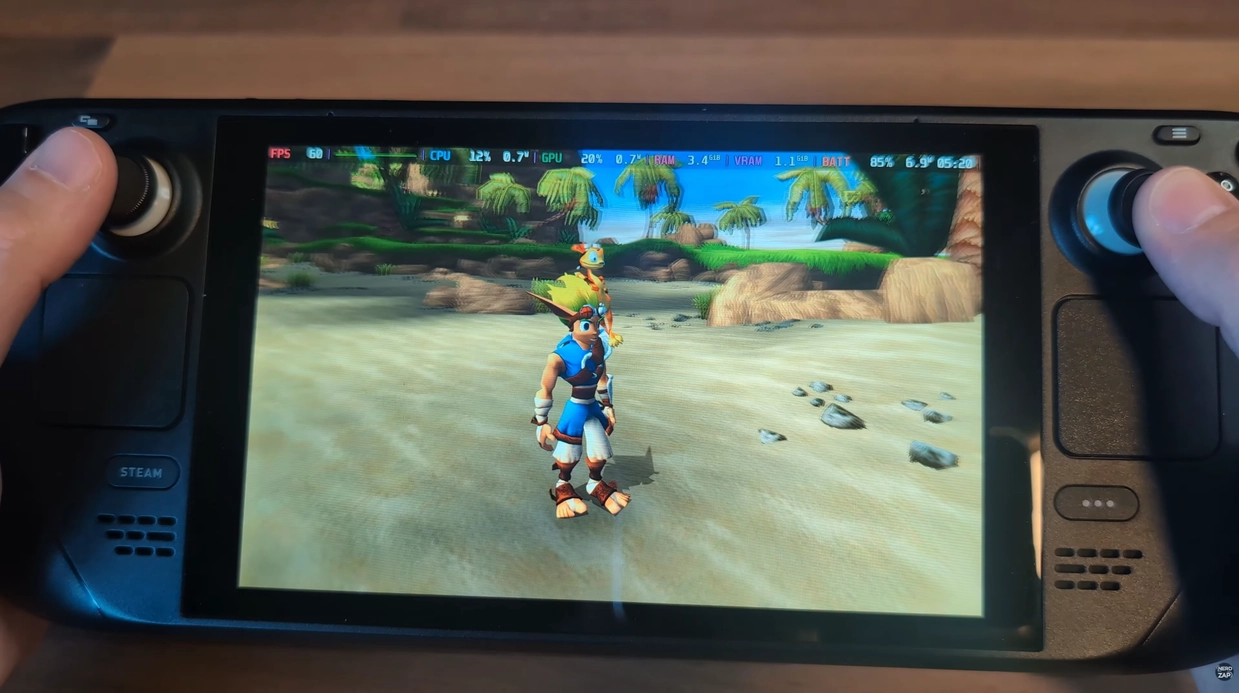
Running games natively is a "win-win" over emulation. Thanks to the OpenGOAL project, you can play Jak and Daxter with improved stability, higher frame rates, and better battery life because the game is running on modern hardware rather than an emulated environment.
📌 Key Takeaways
- Native Performance: Higher stability and frame rates compared to standard PS2 emulation.
- Efficiency: Significant improvements to battery life compared to emulation.
- Full Customization: Supports Steam library shortcuts and custom artwork via Decky.
📂 Downloads & Resources
You will need the following tools for this guide:
Decky Loader Installer OpenGOAL⚠️ Prerequisites: You will need your own ISO file for Jak 1 or Jak 2 (named JAK1.iso or JAK2.iso).
Step 1: Install Decky Loader
If you don't already have Decky Loader installed, you need to set it up first.
- Switch to Desktop Mode (Power > Switch to Desktop).
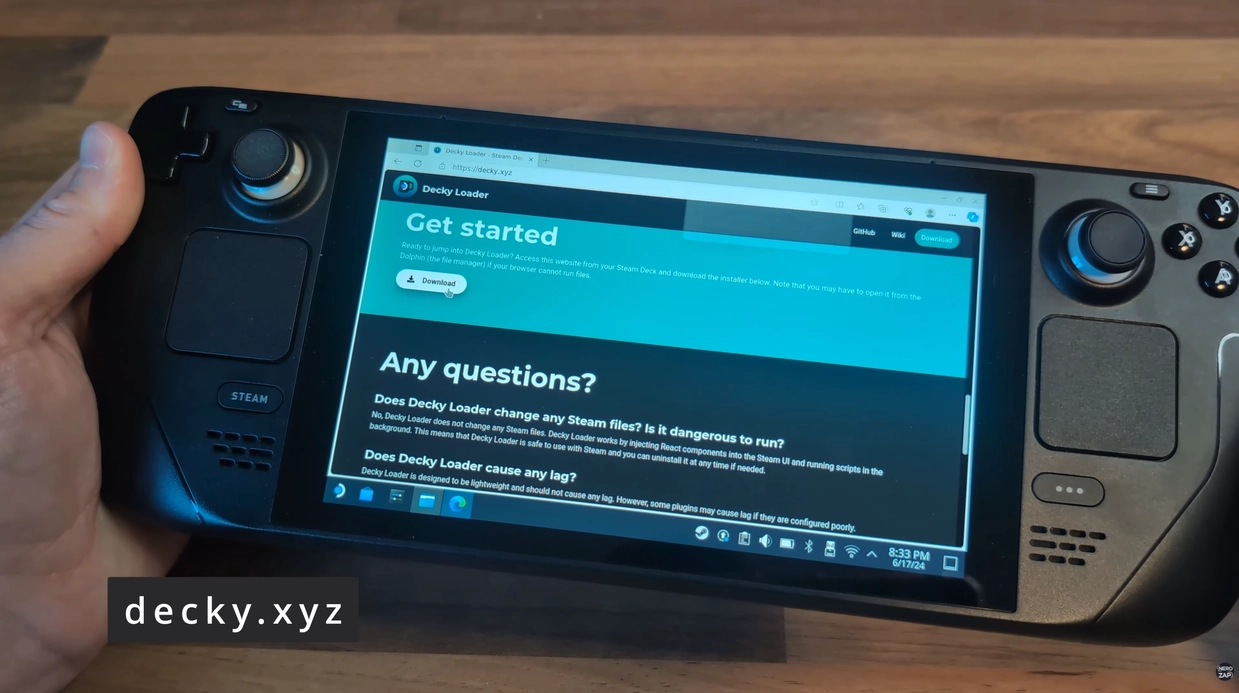
- Open a web browser and go to decky.xyz.
- Click the Download button to get the installer file.
- Locate the file in your downloads folder (usually
decky-installer.desktop) and double-click it to run. - Follow the on-screen prompts (you may need your sudo password).
Step 2: Install the OpenGOAL Plugin
Now we will add the specific plugin needed to run the game.
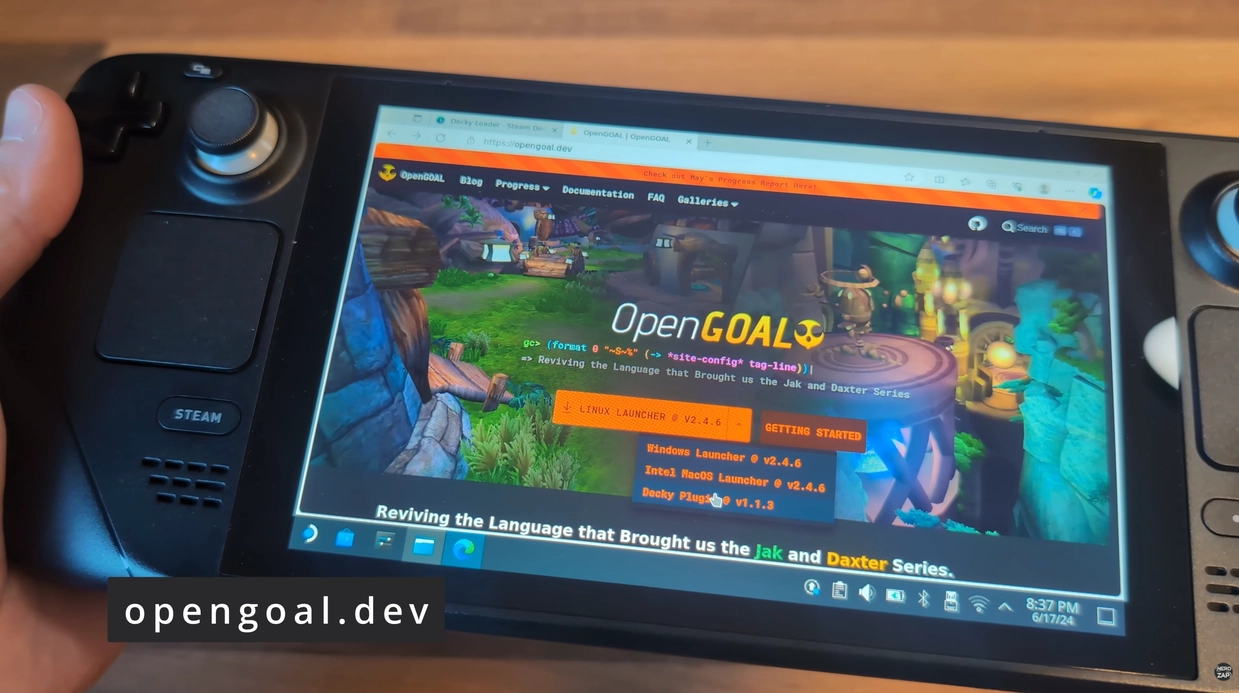
- While still in Desktop Mode, download the plugin zip file from the OpenGOAL website (or GitHub releases).
- Return to Gaming Mode.
- Press the Quick Access Menu (three-dot button) and select the plugin icon (plug).
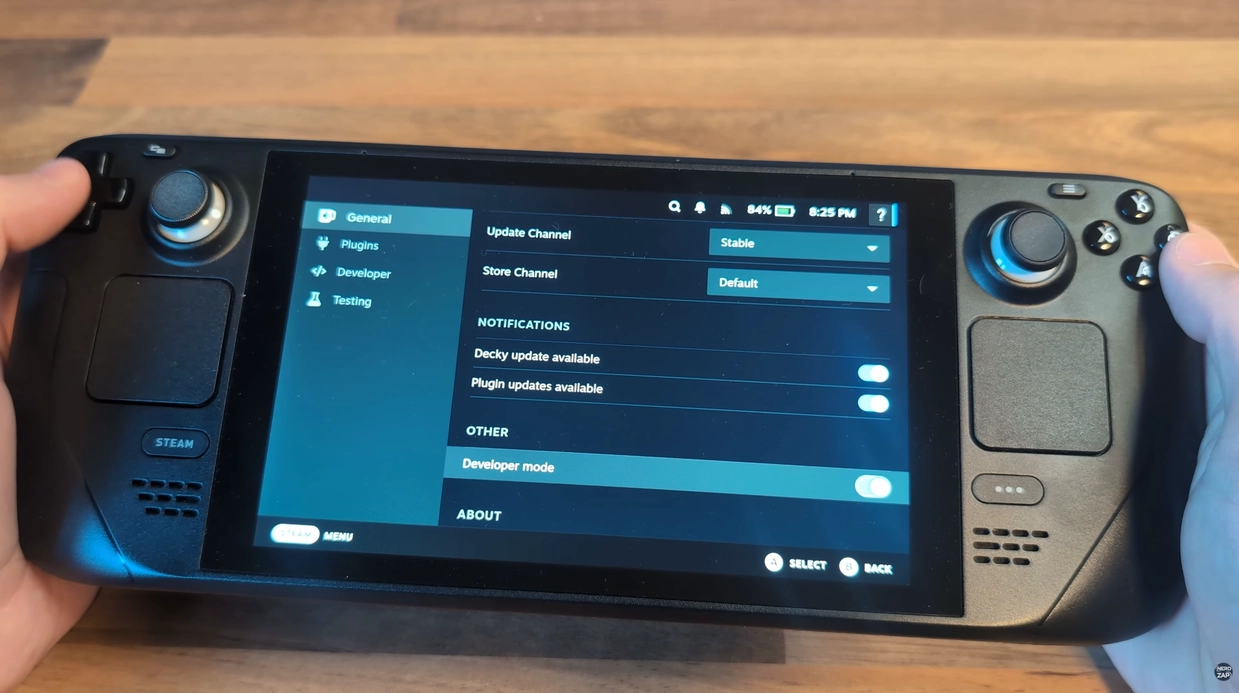
- Go to the settings cog and enable Developer Mode.
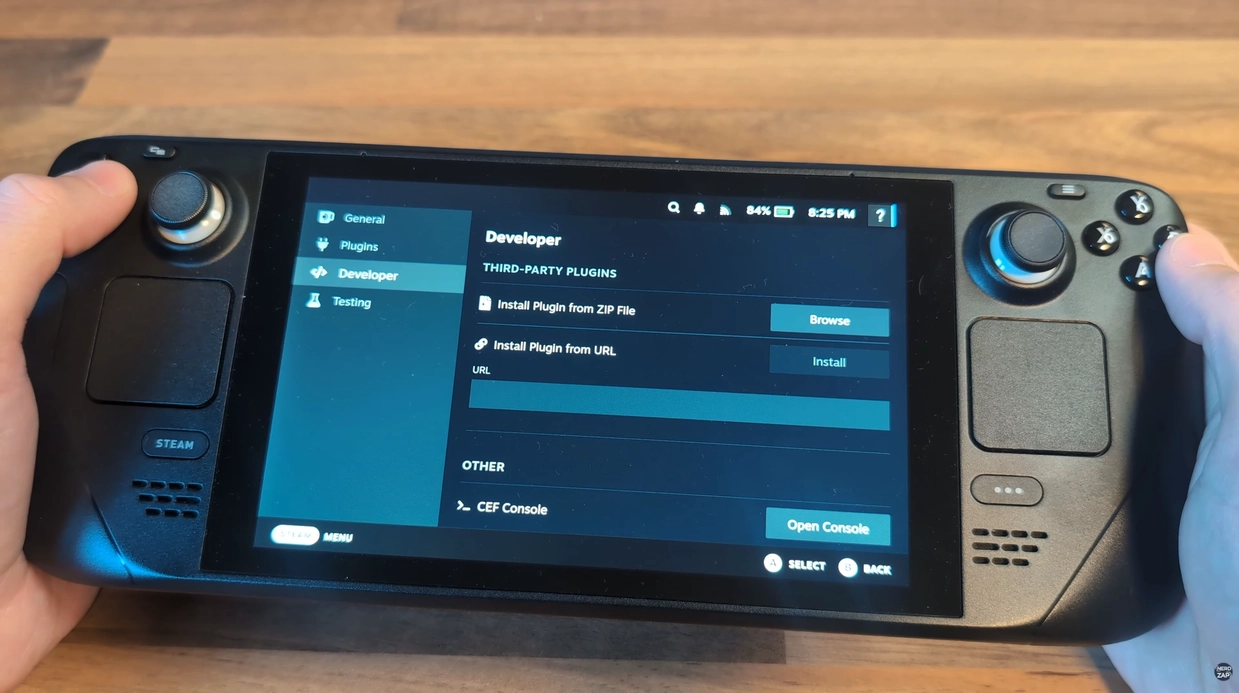
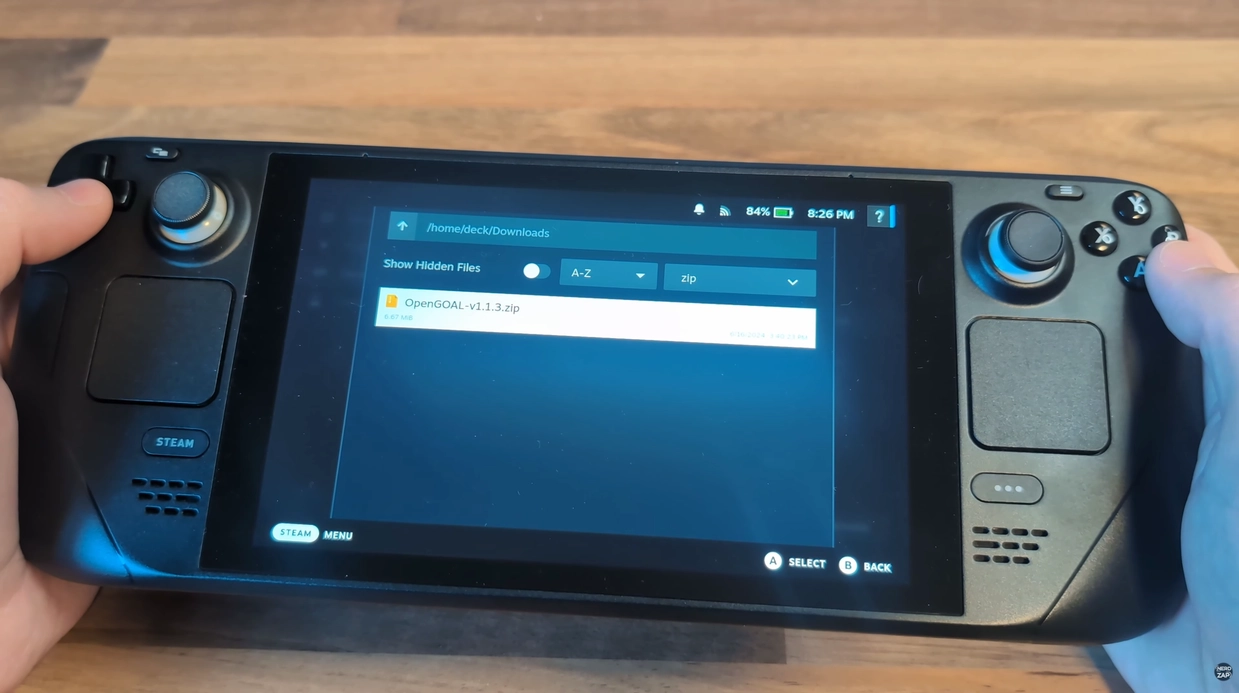
- In the Developer options, select Install Plugin from Zip and choose the file you downloaded.
Step 3: Add Your Game ISO
- Switch back to Desktop Mode.
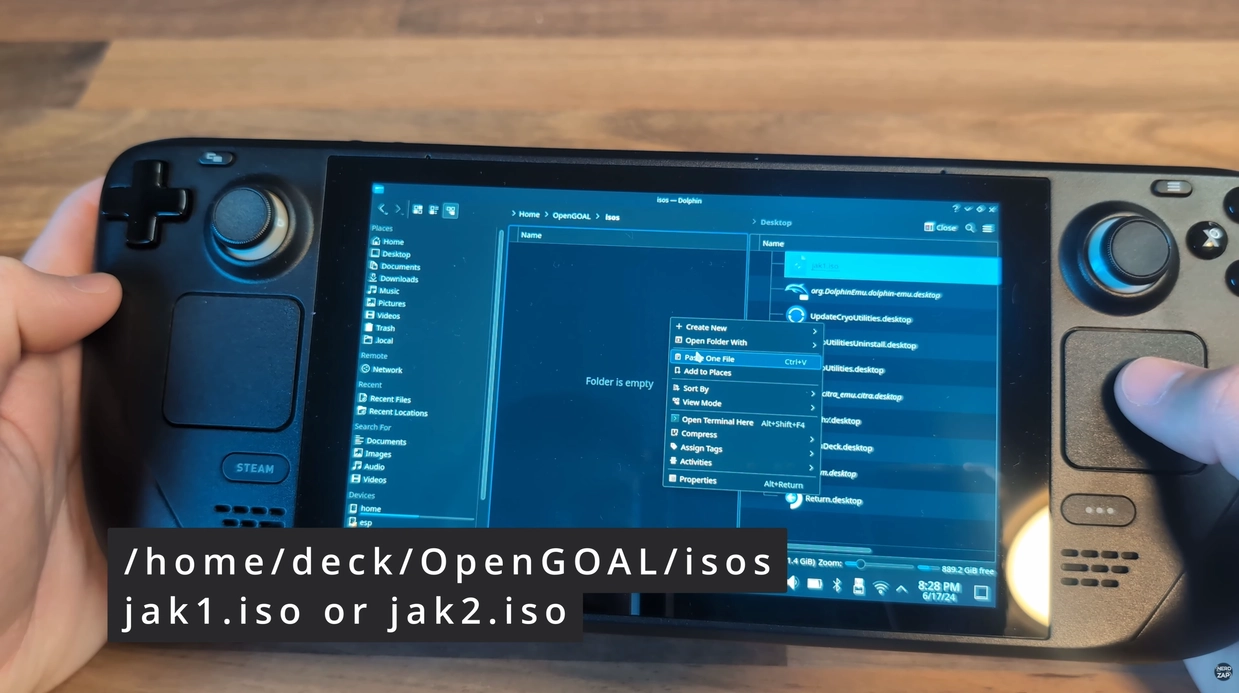
- Open the file manager and navigate to the directory created by the OpenGOAL plugin (usually under
/home/deck/OpenGOAL/isos) - Copy your ISO file into this directory.
- Critical: Your file must be named exactly
JAK1.isoorJAK2.iso. If the naming is incorrect, the installation will fail.
Step 4: Build and Launch
- Return to Gaming Mode and open the Decky menu again.
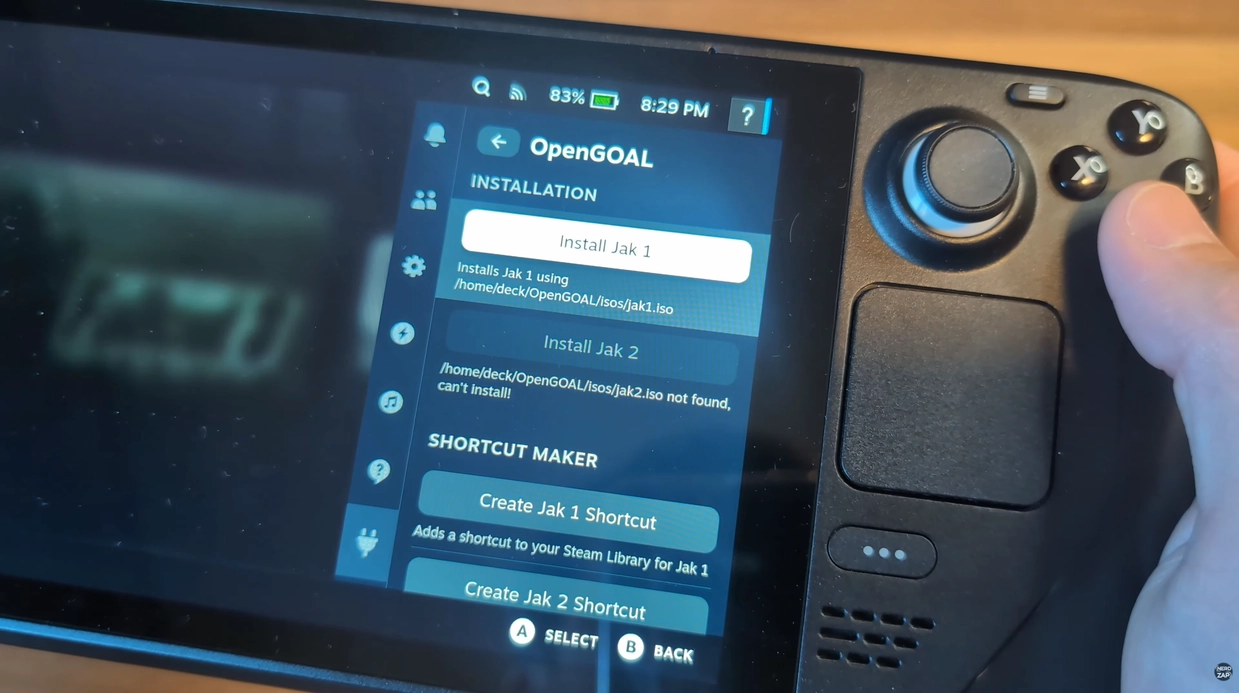
- Select the new OpenGOAL plugin from the list.
- Select the option to Install (Jak 1 or Jak 2).
- Once the process finishes, click Create Shortcut.
- The game will now appear in your Non-Steam library, ready to play.
... Subscribers
Found this guide helpful?
Support the channel to help me create more tools and guides!