Fix: Xbox Controller Flashing & Not Pairing
It is a common frustration: your Steam Deck says the Xbox controller is "Paired," but the Xbox button keeps flashing and inputs aren't registered. If restarting and re-pairing hasn't worked, the culprit is almost certainly outdated controller firmware.
📌 Key Takeaways
- Bluetooth Compatibility: Modern Xbox controllers require specific firmware versions to communicate properly with the Steam Deck's Bluetooth stack.
- Quick Fix: A simple firmware update via a PC or Xbox console usually resolves all pairing loops.
- Stable Connection: Once updated, the controller should auto-connect instantly in the future.
The Problem
You may find that the Steam Deck recognizes the controller in the Bluetooth menu, but the controller itself remains in "pairing mode" (flashing light). This happens because older Xbox controller firmware uses a Bluetooth LE version that struggles with Linux-based systems like SteamOS.
The Solution: Update Firmware
Method 1: Using a Windows PC
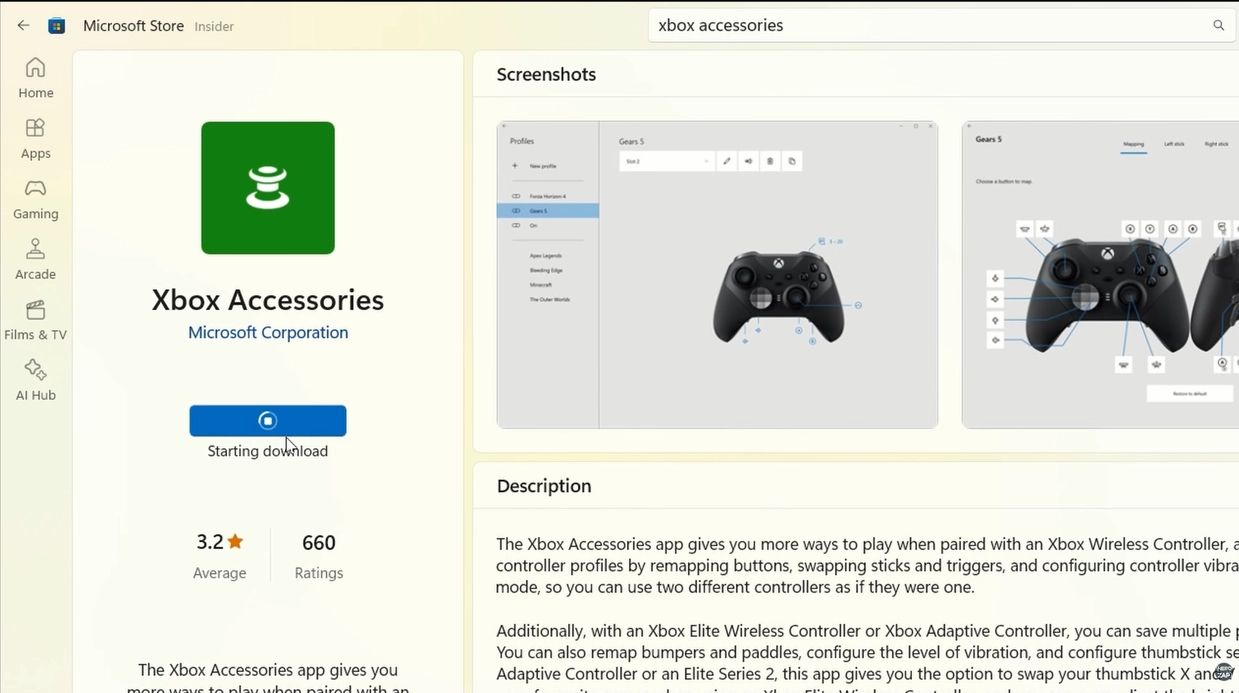
- On your PC, open the Microsoft Store.
- Search for and download the Xbox Accessories app.
- Connect your Xbox controller to the PC using a USB-C cable.
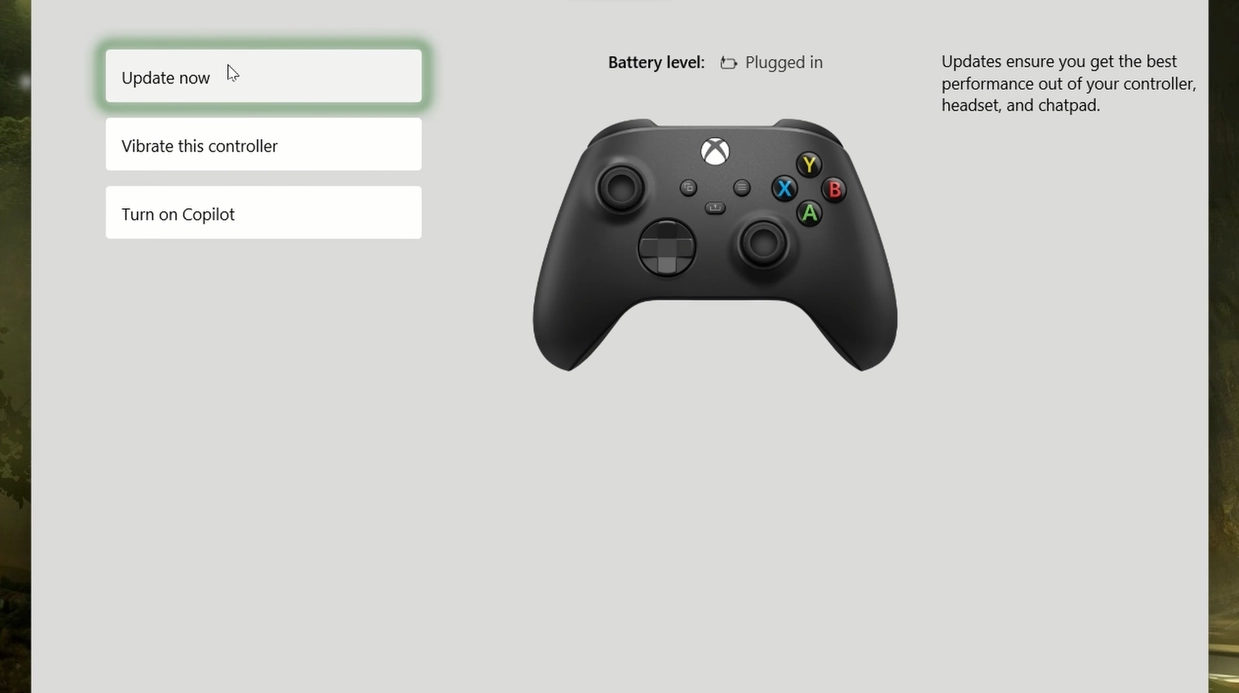
- Open the app, select your controller, and click the three dots (...) for "More Options."
- If an update is available, select Update Now and wait for the process to finish.
Method 2: Using an Xbox Console
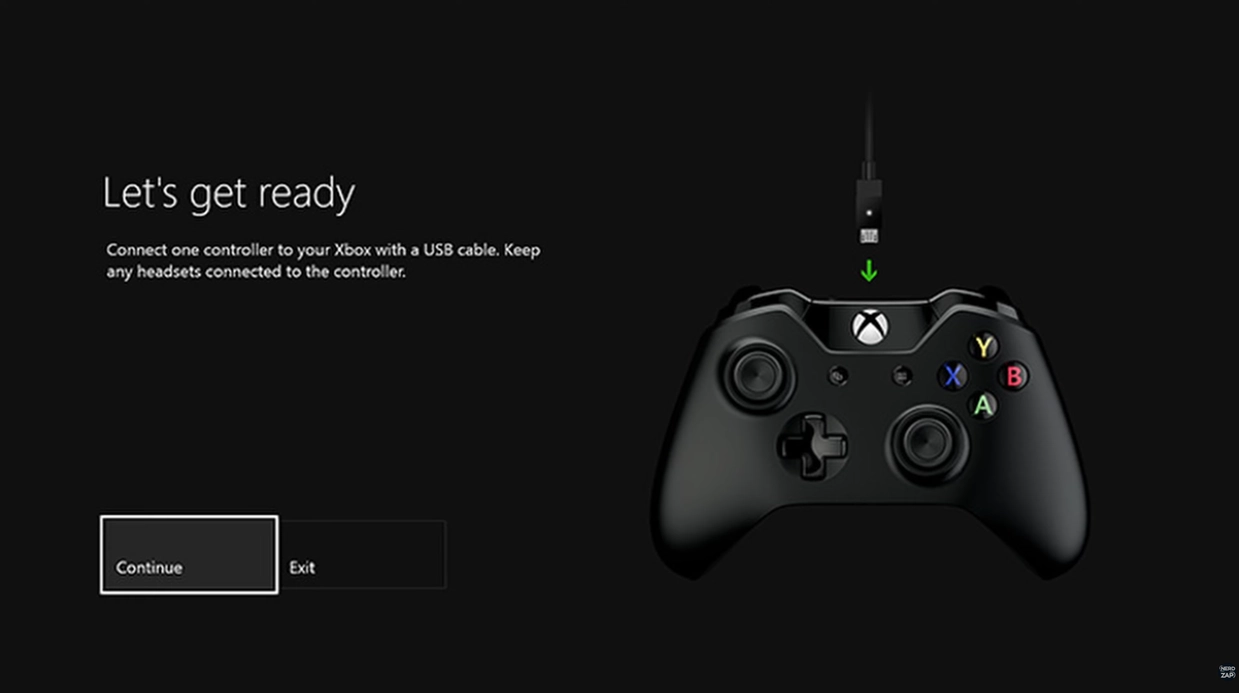
- Plug your controller directly into the Xbox console using a USB cable.
- The update process should start automatically. If not, go to Settings > Devices & Connections > Controllers & Headsets and select Update Now.
Final Step: Re-pair to Steam Deck
- On your Steam Deck, go to Settings > Bluetooth.
- Find the previous "Xbox Wireless Controller" entry, tap the Options button, and select Forget Device.
- Put your controller back into pairing mode (hold the sync button).
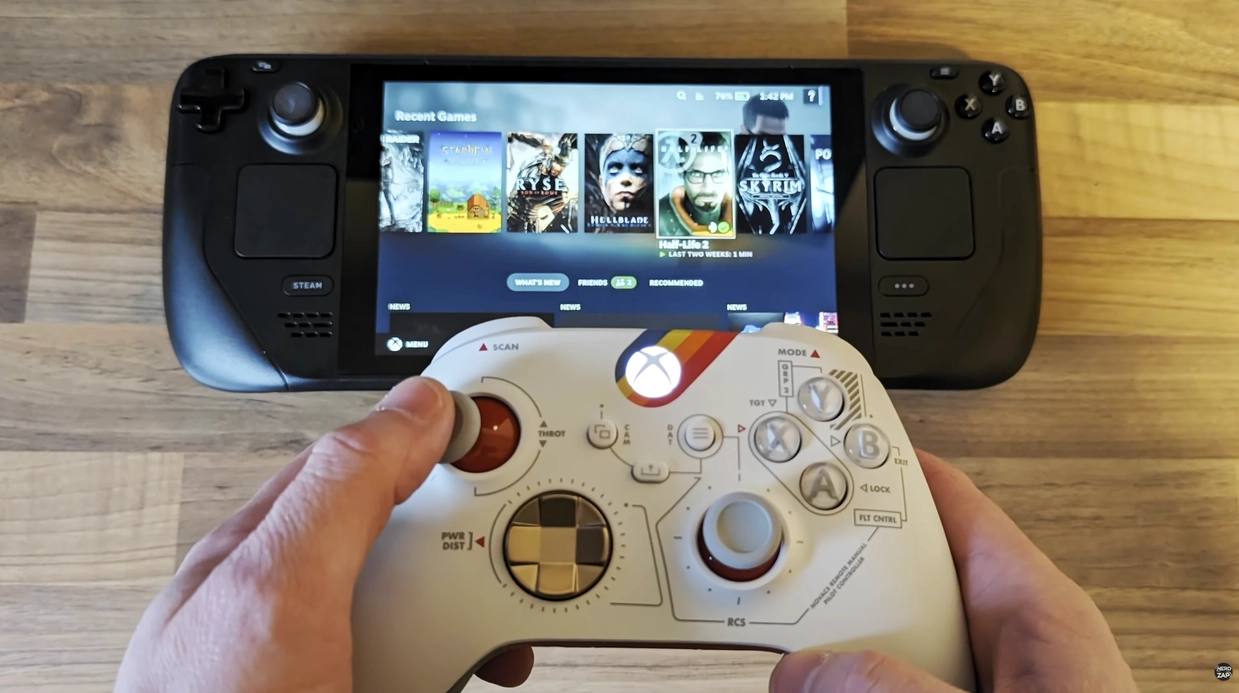
- Select the controller from the list on your Steam Deck to pair it fresh. It should now connect solidly without flashing.
... Subscribers
Found this guide helpful?
Support the channel to help me create more tools and guides!