PlayStation Remote Play on Steam Deck (Chiaki-ng)
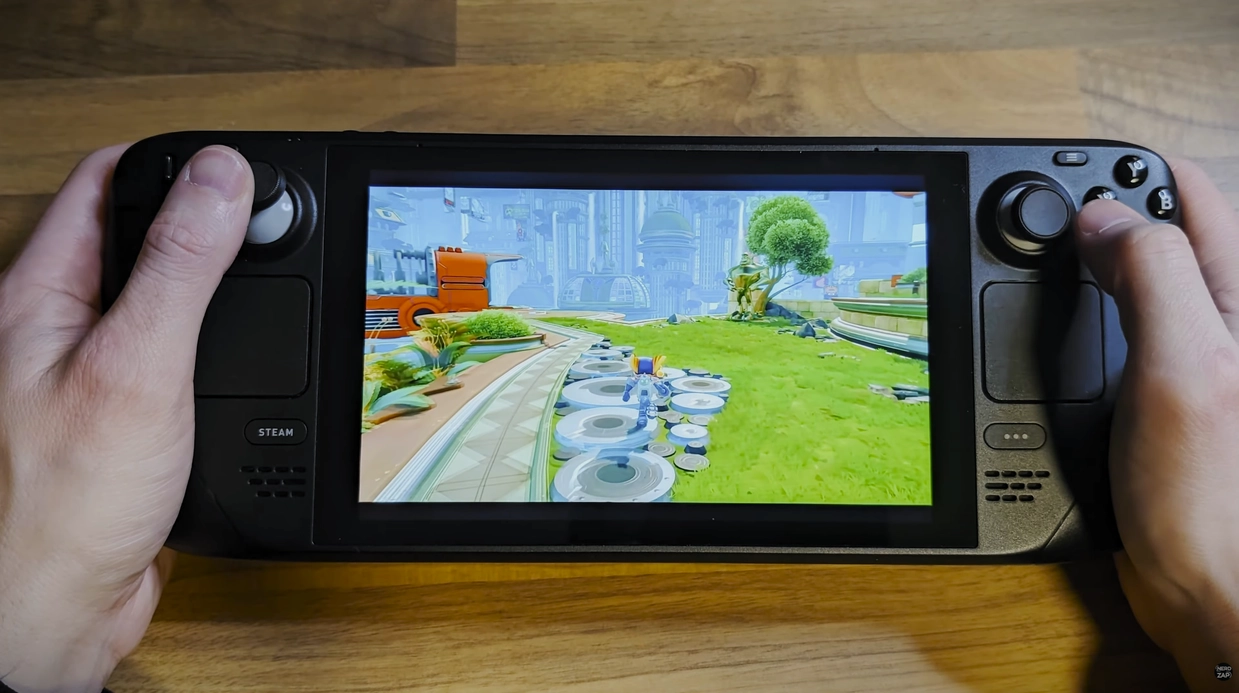
Using the open-source Chiaki-ng (formerly Chiaki4deck), you can effectively turn your Steam Deck into a "PlayStation Portal." It utilizes the official Remote Play features of your PS4 or PS5 to provide a smooth, integrated gaming experience.
📌 Key Takeaways
- Native Integration: Wake your PlayStation and start playing directly from Gaming Mode.
- Cross-Gen Support: Works perfectly for both PlayStation 4 and PlayStation 5.
- Custom Controls: Use Steam Deck's community layouts to map the PlayStation touchpad and Home buttons.
Step 1: Install and Initial Setup
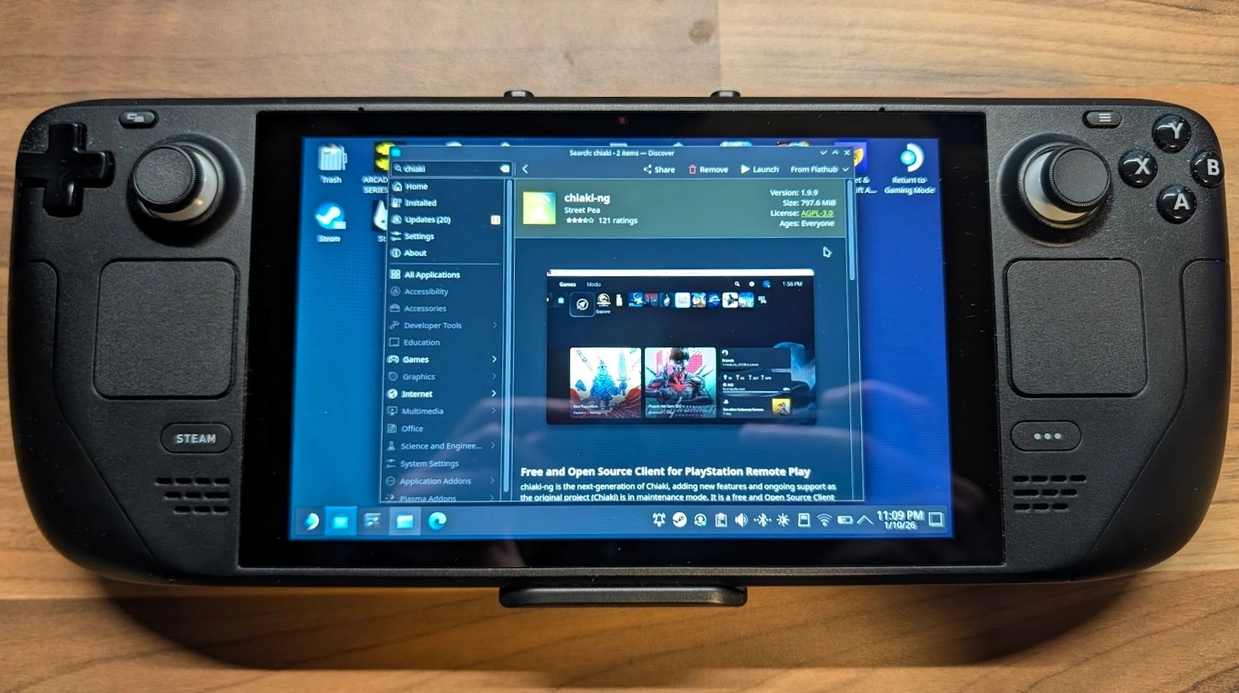
- In Desktop Mode, open the Discover Store and search for Chiaki-ng (if you search for "chiaki4deck" it may still appear, but "ng" is the current version).
- Install the application and add it to Steam as a non-Steam game.
- Open Chiaki-ng. If your PlayStation is on and on the same network, it should be auto-detected. It can also be added manually by IP address if required.
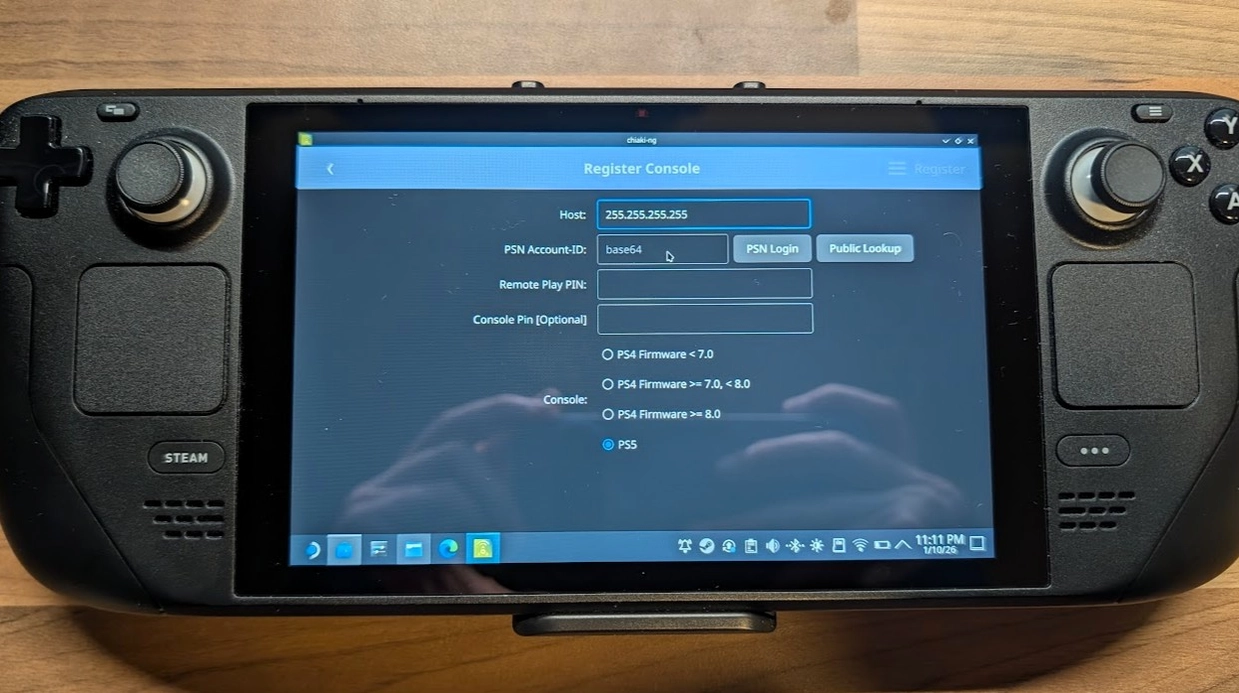
Step 2: Get Your PSN ID and Remote Play Pin
- Method A (Built-in): In Chiaki-ng, use the "PSN Login" button to log in to your account securely; the app will attempt to grab your ID automatically.
- Method B (Manual): You can also use the Public Lookup option in Chiaki-ng to obtain your PSN ID. Alternatively, the website flipscreen.games has a lookup tool.
- On your PlayStation console, navigate to Settings > System > Remote Play > Link Device to receive an 8-digit pin.
- Enter both the encoded ID and the Pin into Chiaki-ng and select Register.
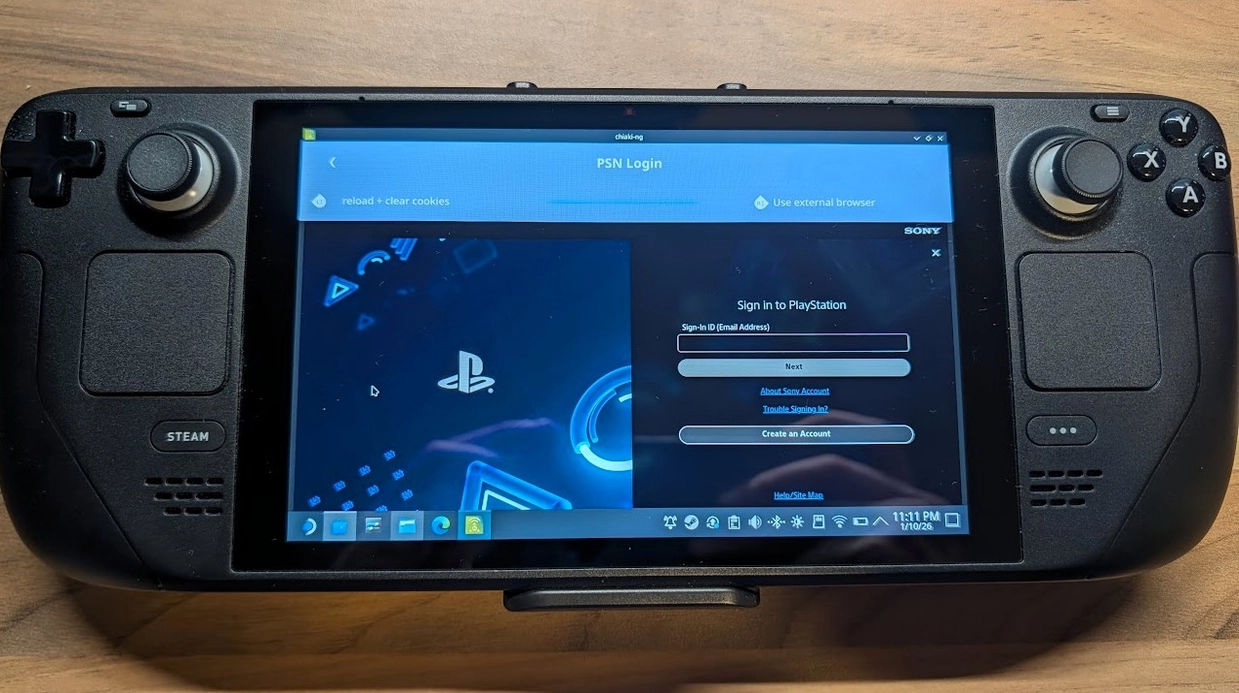
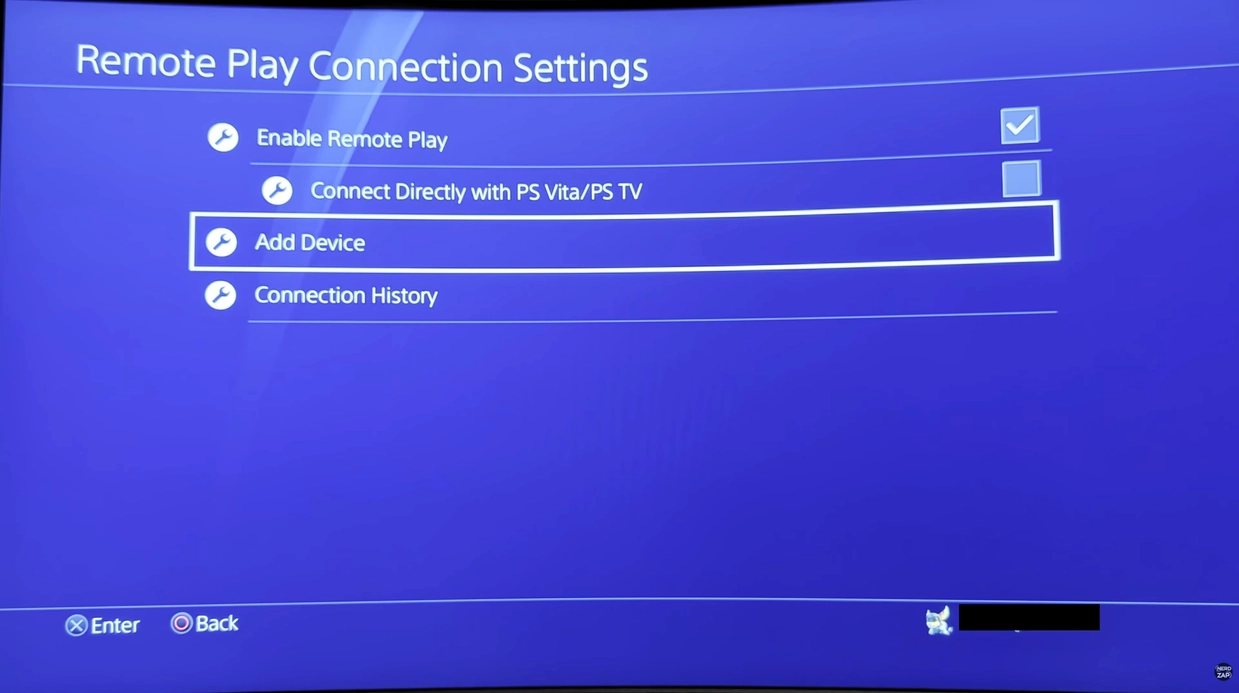
Step 3: Final Configuration
- Enable the Autoconnect option in the console menu within Chiaki-ng.
- Return to Gaming Mode on your Steam Deck.
- Before playing, apply a Community Controller Layout (search for "chiaki-ng" or "chiaki4deck" layouts) to ensure the trackpads map to the PlayStation touchpad correctly.
... Subscribers
Found this guide helpful?
Support the channel to help me create more tools and guides!