Cast Your Meta Quest to Firestick / Fire TV
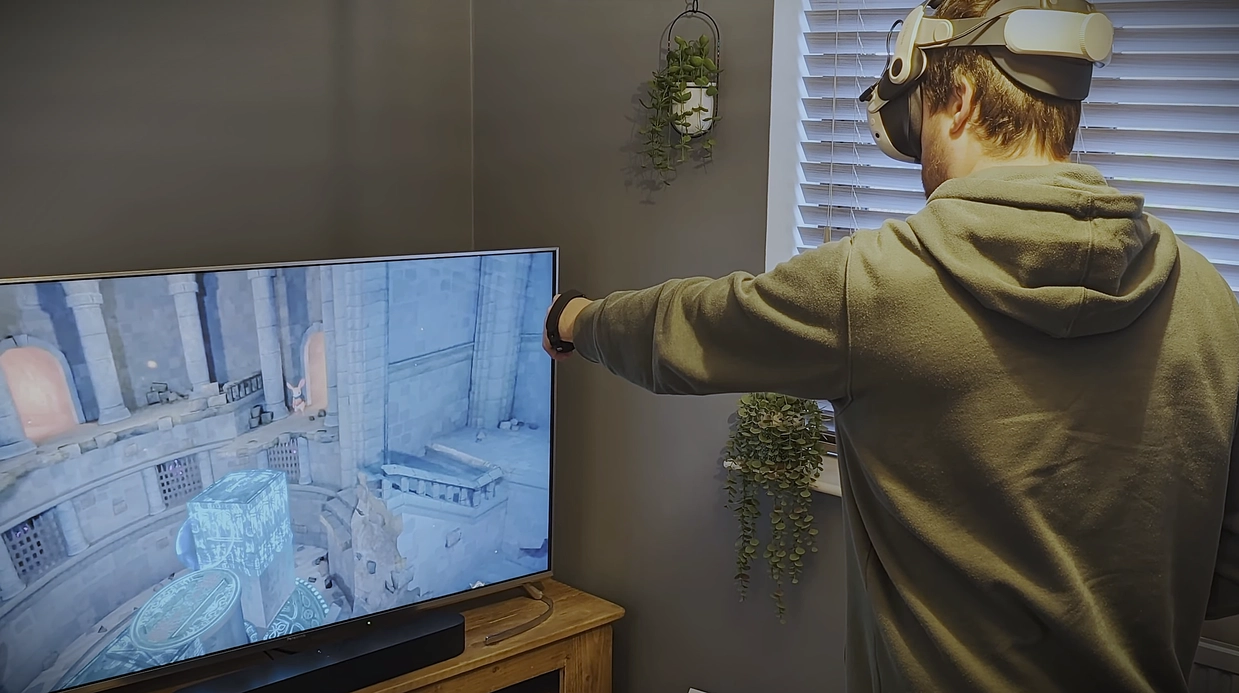
VR is much more social when everyone else can see what you're doing. While Amazon Fire TV doesn't officially support the Quest's Chromecast technology, there is a simple workaround to get your gameplay on the big screen.
📌 Key Takeaways
- Bridge the Gap: Use third-party apps to add Chromecast support to your Firestick.
- Low Cost: Reliable casting options are available for a very small one-time fee or even for free.
- High Compatibility: Works for both Meta Quest 2 and Quest 3.
The Challenge
The Meta Quest uses Chromecast technology to cast video. Because Fire TV is an Amazon product, it does not support Google's Chromecast protocol out of the box. To fix this, you need a "receiver" app on the Firestick.
Recommended Apps
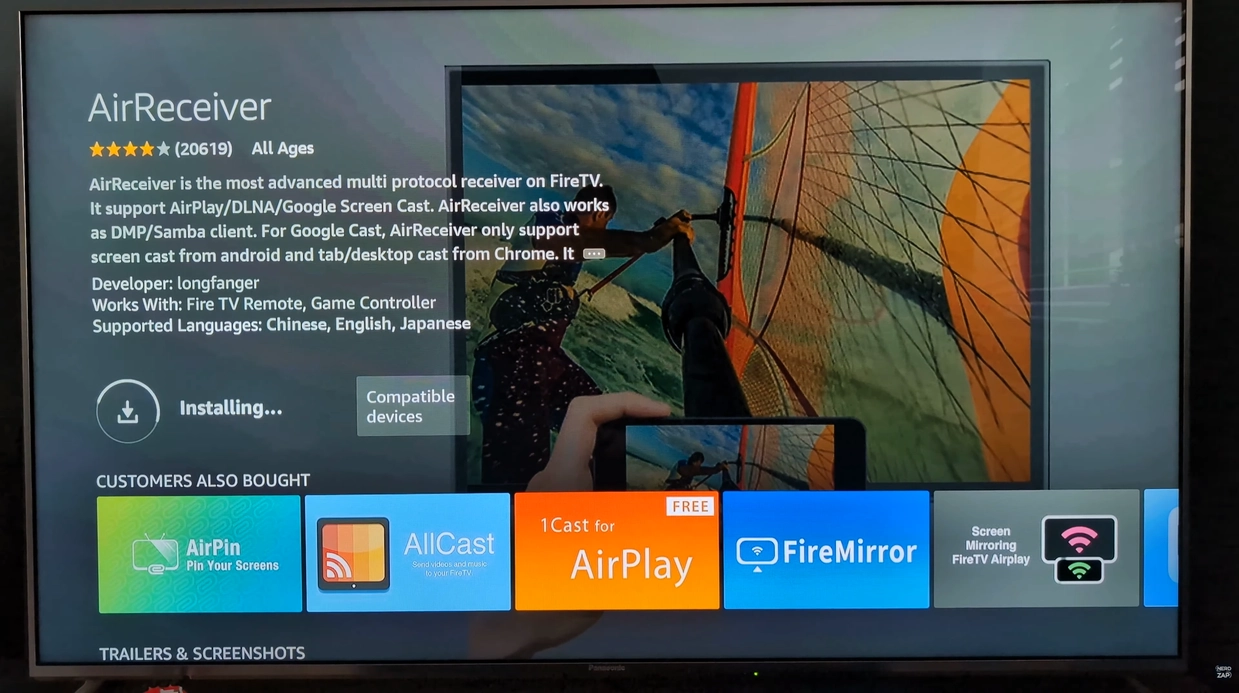
- AirReceiver (Recommended): This is a paid app (roughly £1.78 / $2.99), but it offers a simple interface and reliable performance without ongoing subscriptions.
- AirScreen: A free alternative that works well, though the interface can be clunky and some advanced features may require a subscription.
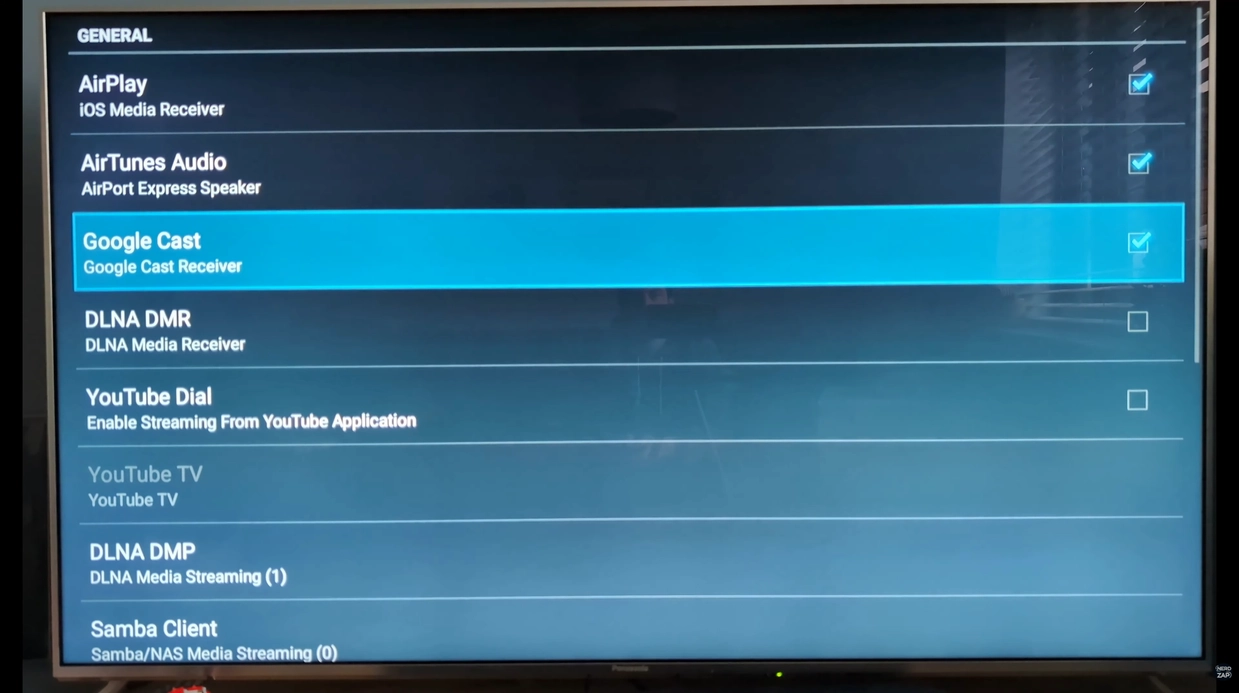
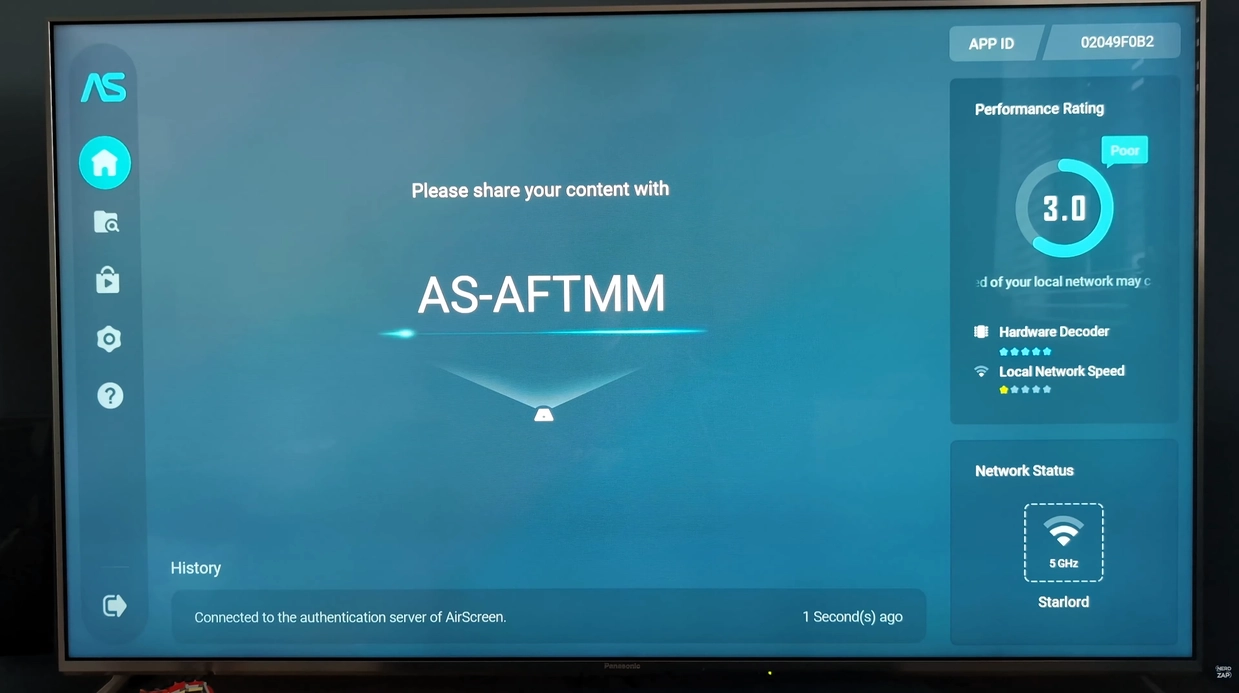
How to Setup
- Search for and install either AirReceiver or AirScreen from the Amazon App Store on your Firestick.
- Open the app on your TV.
- Put on your Quest headset and select the Camera option from the main menu.
- Select Cast and choose your Firestick from the list of available devices.
- Enjoy!
... Subscribers
Found this guide helpful?
Support the channel to help me create more tools and guides!